








































Appointments
The booking diary: services and the resources that deliver them (people, rooms, equipment), working hours, booking by staff or by customers online, group sessions, internal meetings, reminders, no-shows, and video meeting links.
| At a glance | |
|---|---|
| Type | Business module |
| Group | Serve |
| Needs | Nothing. Bookings can be billed as ordinary orders. |
| Included in | Clinics, Diagnostic lab, Gym & coaching, Services & appointments, Salon & spa and others |
| Offered to | Every industry pack |
| Permissions | View appointments (appointments.view), Manage appointments (appointments.manage) |
Switching it on
Workspace → Modules → Appointments → Enable (needs Manage modules). Appointments, Resources, Services and Booking links appear under Serve, and Settings gains its page.
Setting up
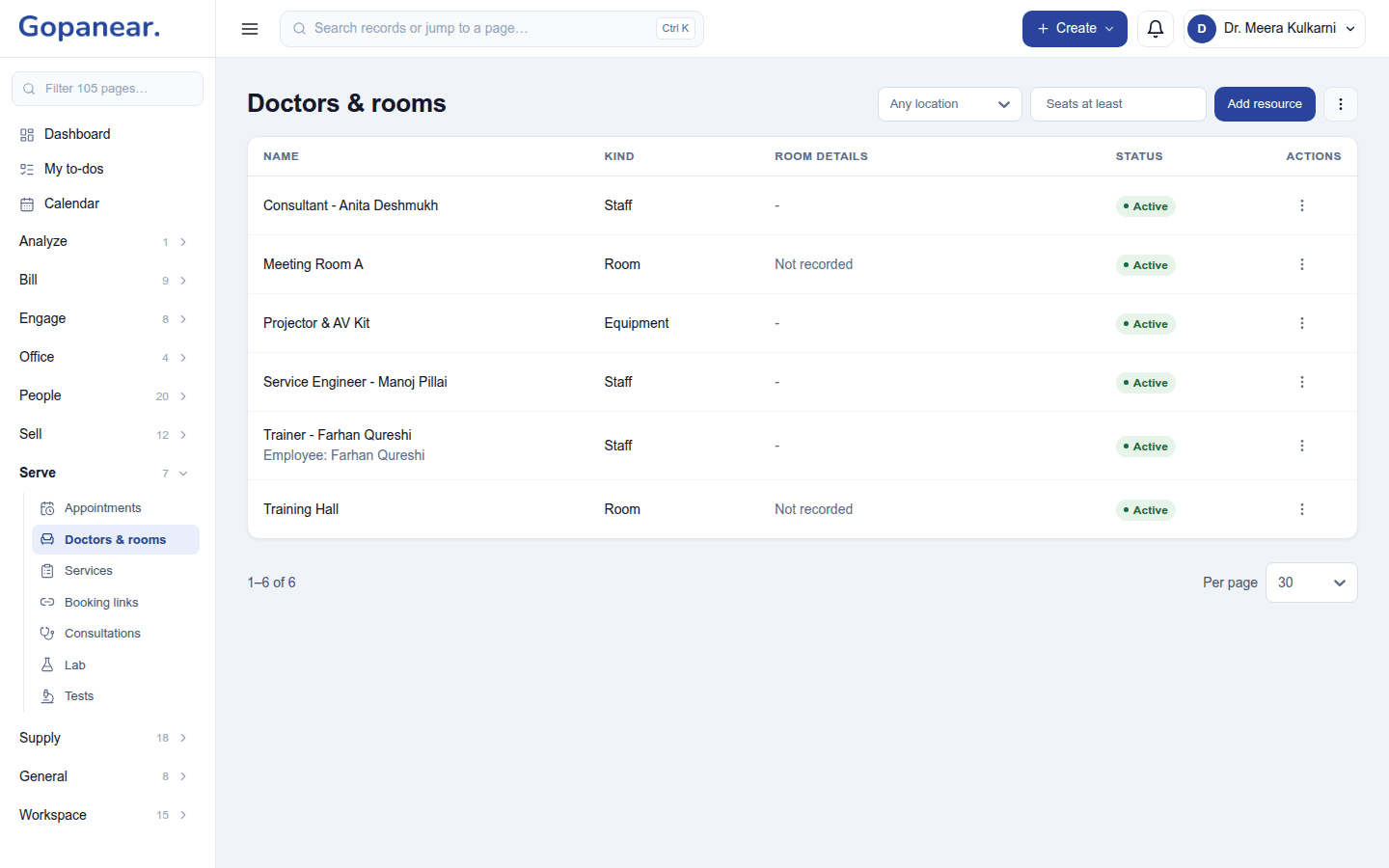
- Resources are who or what a booking takes up: a doctor, a stylist, a consult room, a court. Each has its working hours; staff resources are linked to their employee record, so approved leave blocks the diary.
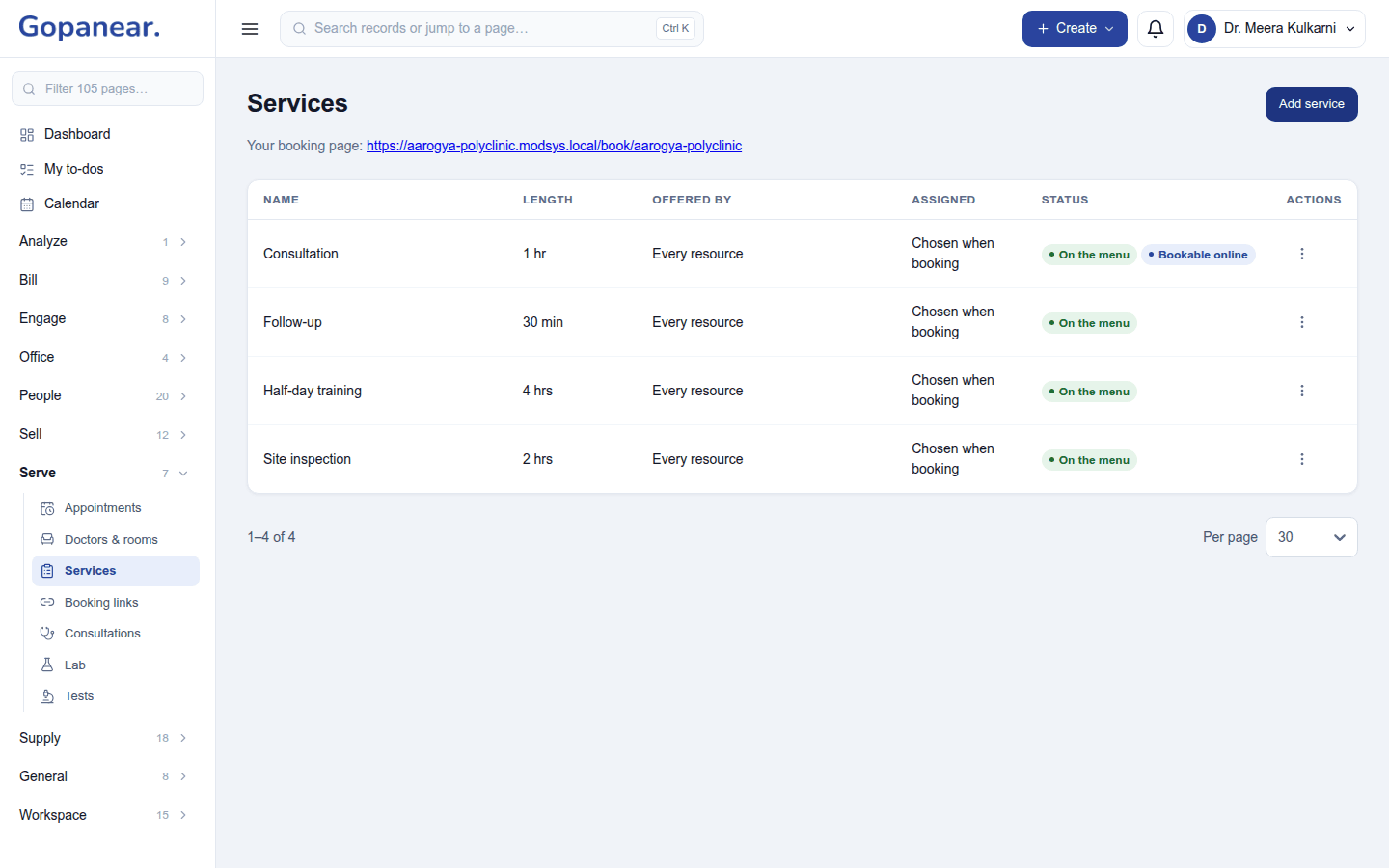
- Services (appointment types) are what is booked: its name, duration, price (the catalogue service it is sold as), which resources can deliver it, buffer and scheduling limits (book at least so long ahead, at most so many days ahead, cancel up to so long before), seats for a group session, questions asked when booking, and whether it can be booked online.
The agenda
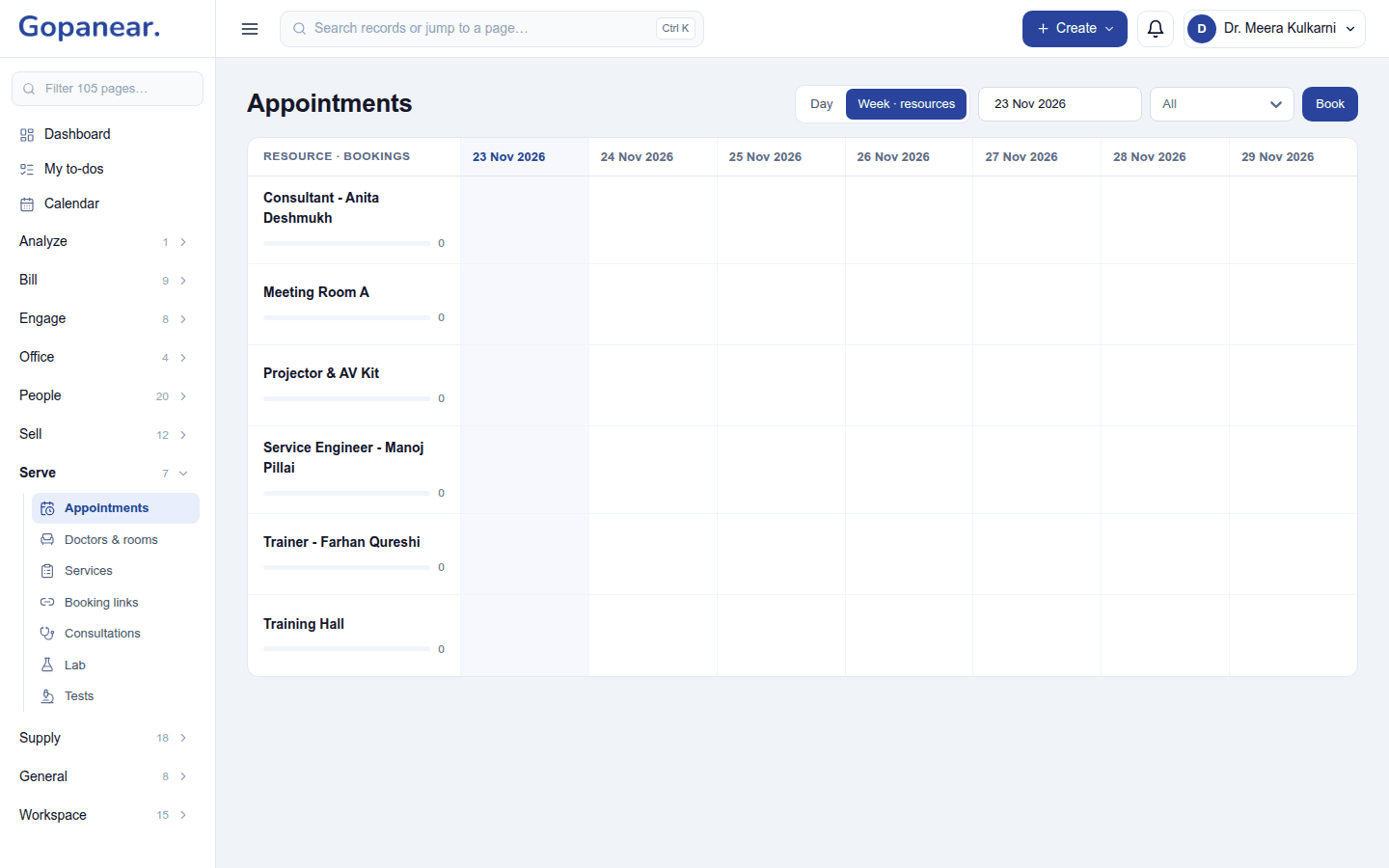
Serve → Appointments shows the day's bookings by resource (Day), or a week across resources (Week · resources). Each booking shows its time, customer, service and status; an online request waiting for staff shows Confirm and Decline.
New booking (or a free slot) opens the booking dialog:
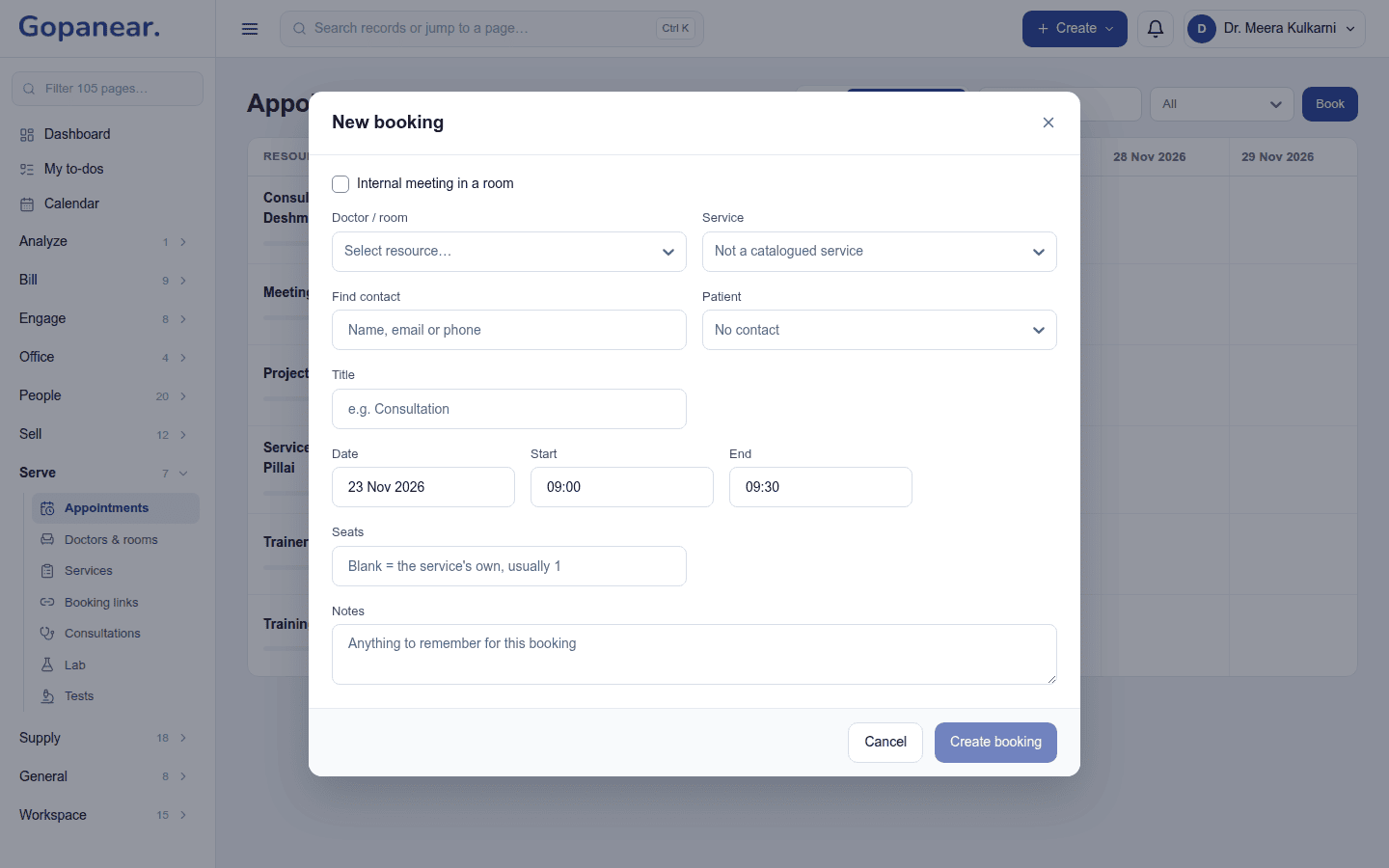
- the service, the resource (or Assigned automatically), the date and time (Find a slot suggests free times within working hours), the customer, and a note;
- with Meeting links (Zoom) on: Create a video meeting link for this booking;
- an Internal meeting books team members (and a room) instead of a customer, and emails each attendee the invitation.
Booking outside working hours, on a staff member's leave or outside the scheduling limits is warned about, and can be done anyway with a tick.
A booking's ⋮ menu: Reschedule, Mark completed, Mark no-show (and Reopen - they did arrive), Cancel booking (a late cancellation is marked Cancelled late), Send WhatsApp… with WhatsApp, and Join meeting for a video booking.
Online booking
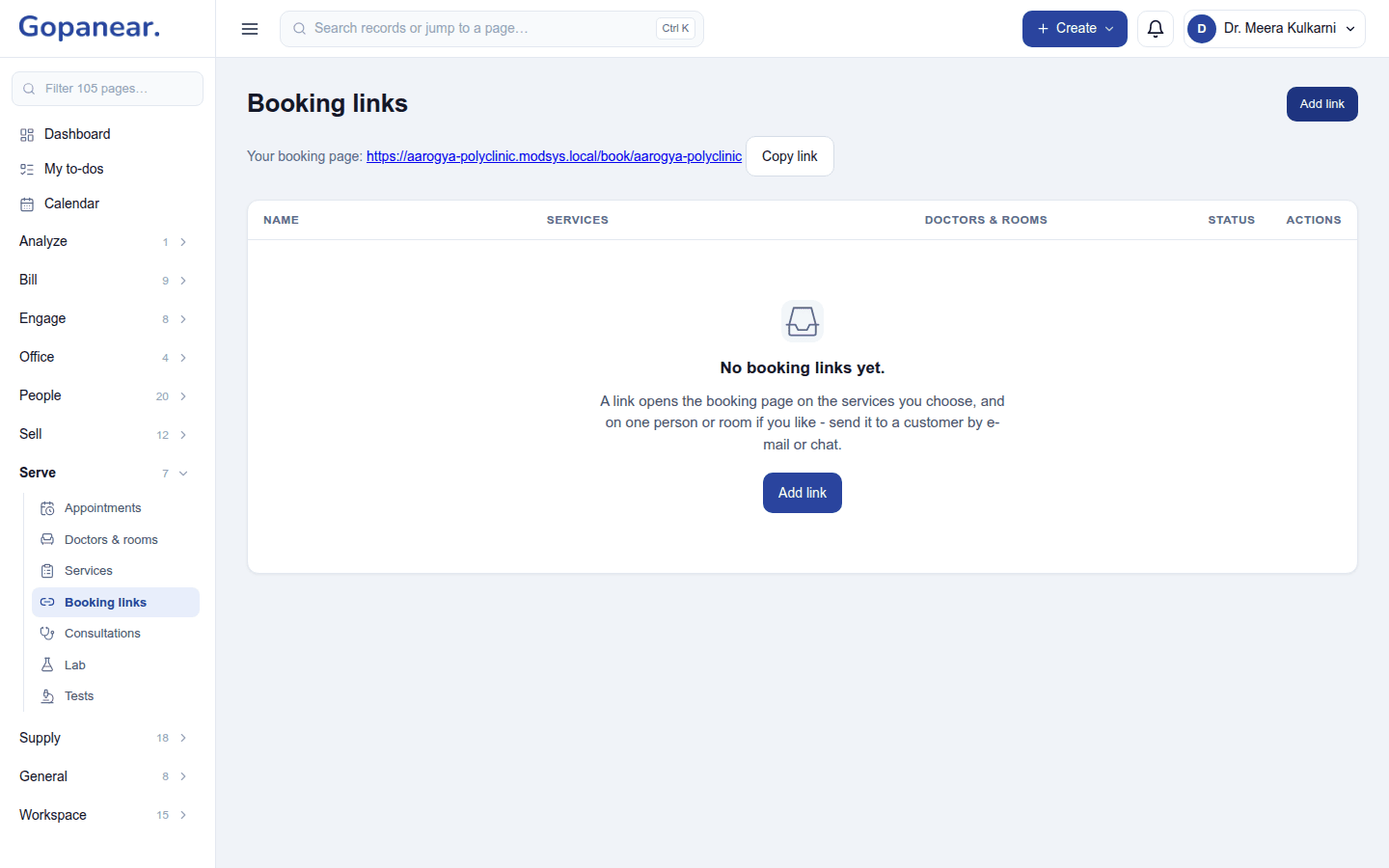
With the plan's Online booking feature, a service marked online is bookable on a public page on the workspace's address: the customer picks a time the diary has free, answers the service's questions, and books. A booking is confirmed straight away, or waits on the agenda for staff to confirm. Booking links gives the page's address and private invite links for one service or one person.
Settings
Settings → Appointments:
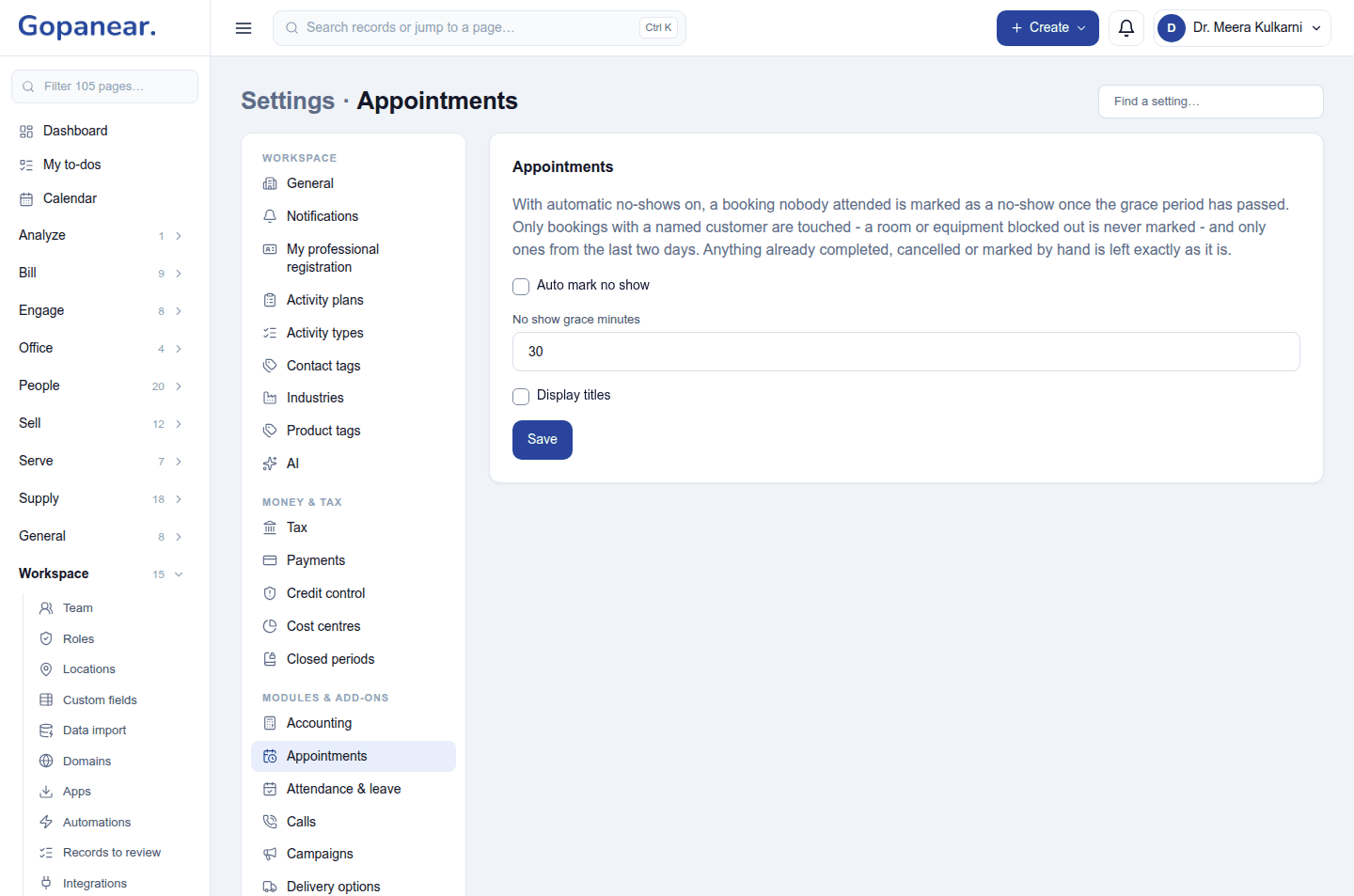
| Setting | Default | What it does |
|---|---|---|
| Auto mark no-show | Off | A booking nobody marked arrived becomes a no-show by itself. |
| No-show grace minutes | 30 | How long after the start before that happens. |
| Display titles | Off | Shows each booking's title on the agenda instead of the customer and service. |
Permissions
| Permission | Allows |
|---|---|
View appointments (appointments.view) |
See the agenda, resources and services. |
Manage appointments (appointments.manage) |
Book, move, confirm and cancel appointments; keep resources, services and links. |
Ready-made automations
| Name | Kind | What it does | Starts |
|---|---|---|---|
| Call to rebook after a no-show | Rule | When an appointment is marked as a no-show, tells the workspace owner to call and book a new time. | On |
| Email a reminder now | Action (on a booking) | Sends the customer a reminder of this appointment straight away. | On |
In the desktop and mobile apps
The day's bookings travel to the apps of the packs that run on appointments: Clinic Desk and Clinic Doctor (clinics and vet clinics), Bookings Desk and Bookings Staff (salons, gyms and clubs), and Client Desk and Client Visits (professional services firms). Each holds the bookings from two days back to two weeks ahead.
- On the desk computer the Appointments screen is this page. With no internet it shows the chosen day from what the computer last synced (Offline - showing what this computer has, last synced 10:42), and Mark completed, Mark no-show, Reopen and Cancel still work: the booking shows its new state at once, marked Waiting to sync, and is sent when the internet is back. Booking, rescheduling, the week view and the booking's answers need the internet.
- On a phone the day's bookings are listed by time, and each can be marked completed or a no-show with no signal too.
- If someone else moved the booking meanwhile, the change is not laid over theirs: it comes back as Needs attention with both states named, and can be dismissed. A cancellation past the service's limit comes back with the server's reason.
Turning it off
The four screens leave the menu and the booking page closes. Bookings, resources and services are kept.
In the desktop and mobile apps
Not carried.