







































Restaurant ops (KOT)
Runs the kitchen side of a restaurant: every order raises a kitchen order ticket (KOT), shown live on the kitchen display and printed at the right station, with courses fired in order, cook notes, and table reservations.
| At a glance | |
|---|---|
| Type | Business module |
| Group | Sell |
| Needs | POS |
| Included in | Restaurant, Hotel / guest house, Bakery & sweet shop, Caterer & tiffin service, Association & club |
| Offered to | Restaurant, Bakery & sweet shop, Caterer & tiffin service, Hotel / guest house, Association & club |
| Permissions | View kitchen orders (kot.view), Manage restaurant (kot.manage) |
Switching it on
Workspace → Modules → Restaurant ops (KOT) → Enable (needs Manage modules). POS must be on first. Kitchen (KDS), Kitchen tickets, Print queue and Reservations appear under Sell, and Settings gains its Restaurant page.
Kitchen tickets
Every order placed (at the till, from the floor, by a waiter's phone, from a delivery platform or the shop) raises a kitchen ticket with the items to prepare. Tickets are numbered per day (#1, #2 …, restarting each morning) and routed to the station that cooks each item.
The kitchen display (KDS)
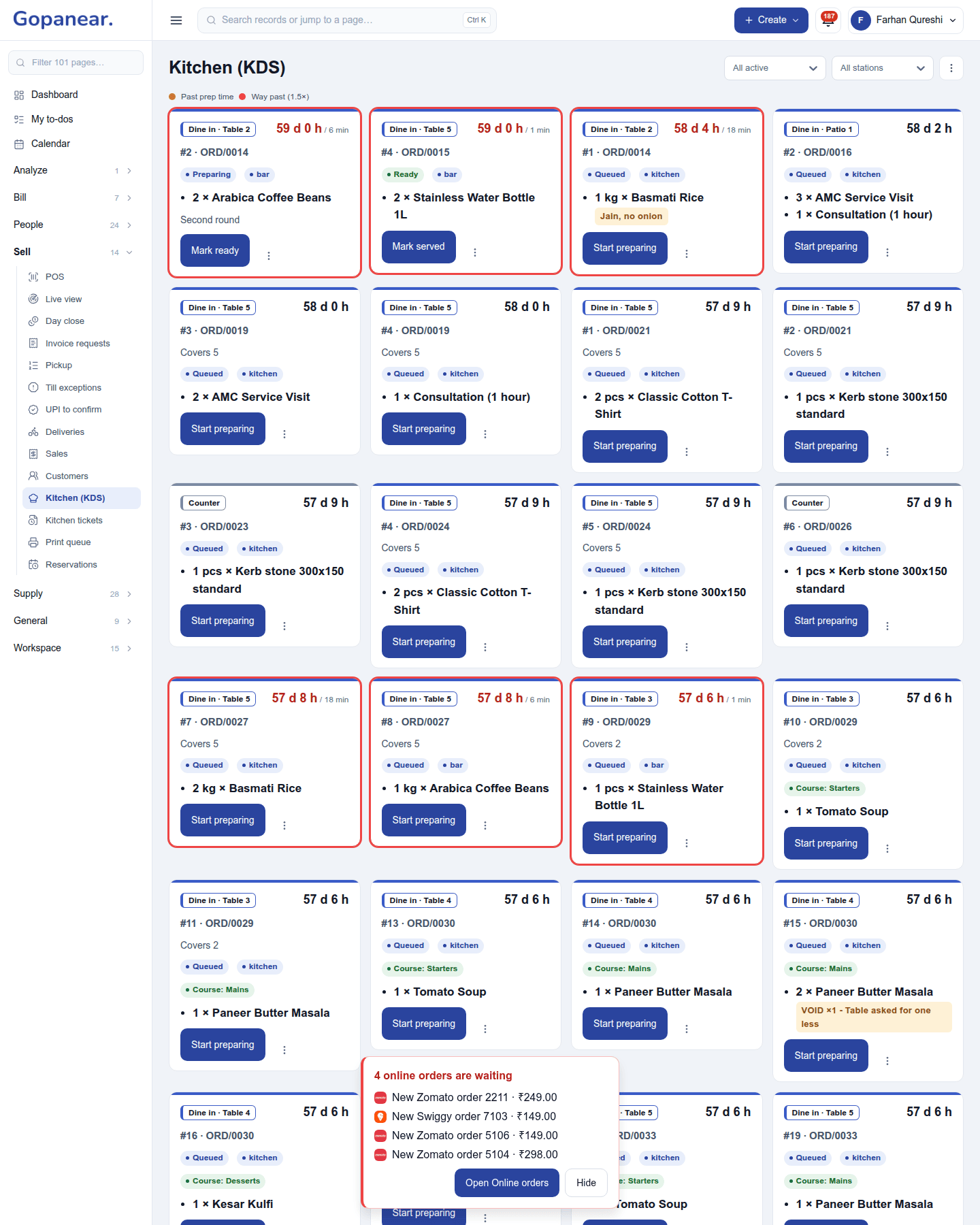
Sell → Kitchen (KDS) is the kitchen's screen: a board of ticket cards, oldest first, each with the ticket and order number, the table, the items with their cook notes, and the minutes since it arrived. It updates live; a new order appears within seconds.
- Each card has one big action: Start preparing → Mark ready → Mark served. Served tickets leave the board.
- Courses are fired in order: a later course waits until the waiter fires it.
- An urgent ticket stands out: an amber ring once it passes its prep time, a red ring at one and a half times it. A voided or cancelled dish shows struck through.
- The board follows your light or dark theme: white cards on a light board in light, dark cards on a darker board in dark.
- When every ticket of an online order is ready, the platform is told the food is ready (Zomato, Swiggy).
Kitchen tickets, print queue and reservations
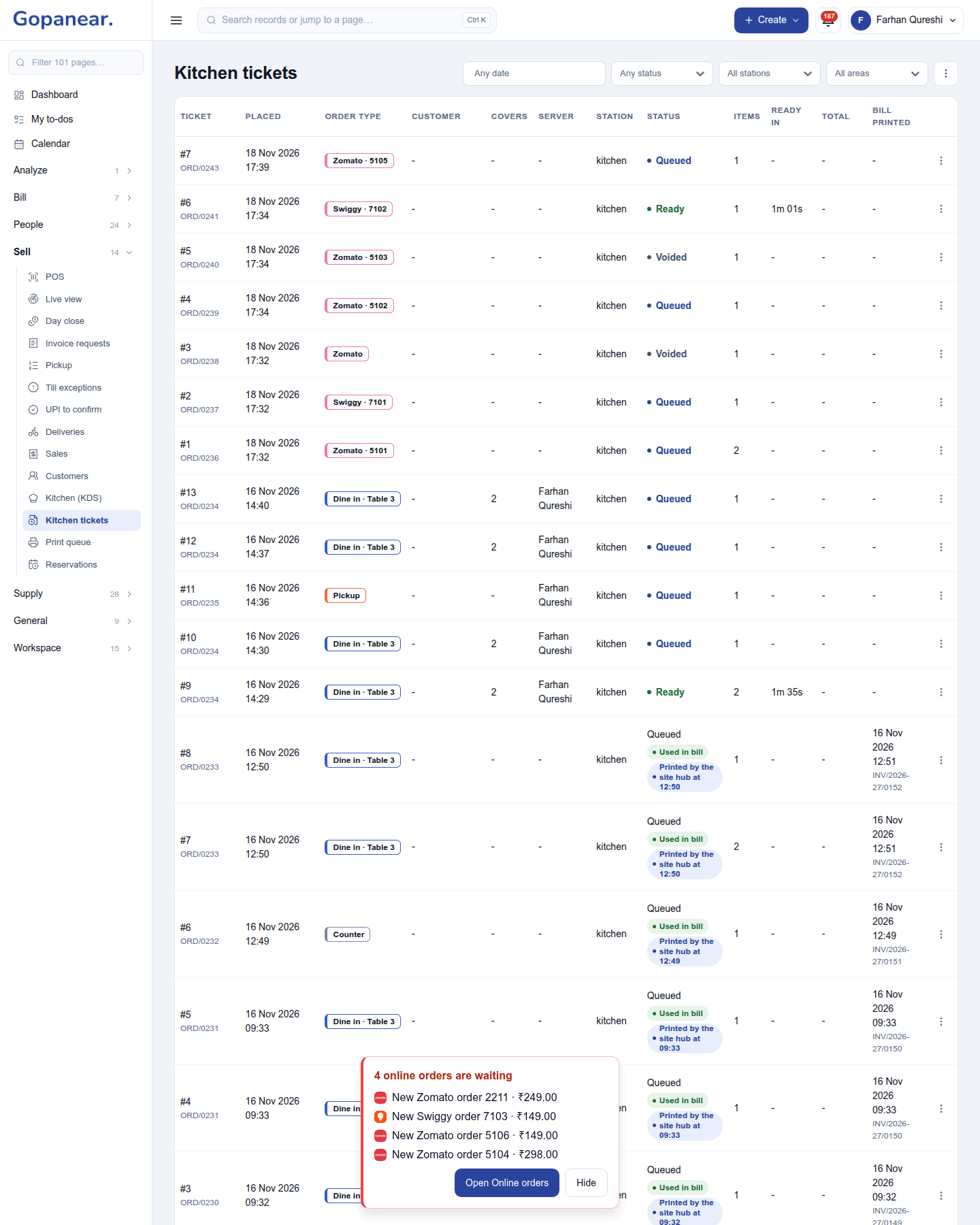
- Kitchen tickets: every ticket with its time, order type, table, customer, server, status and items, filtered by date and state, for looking back over a service.
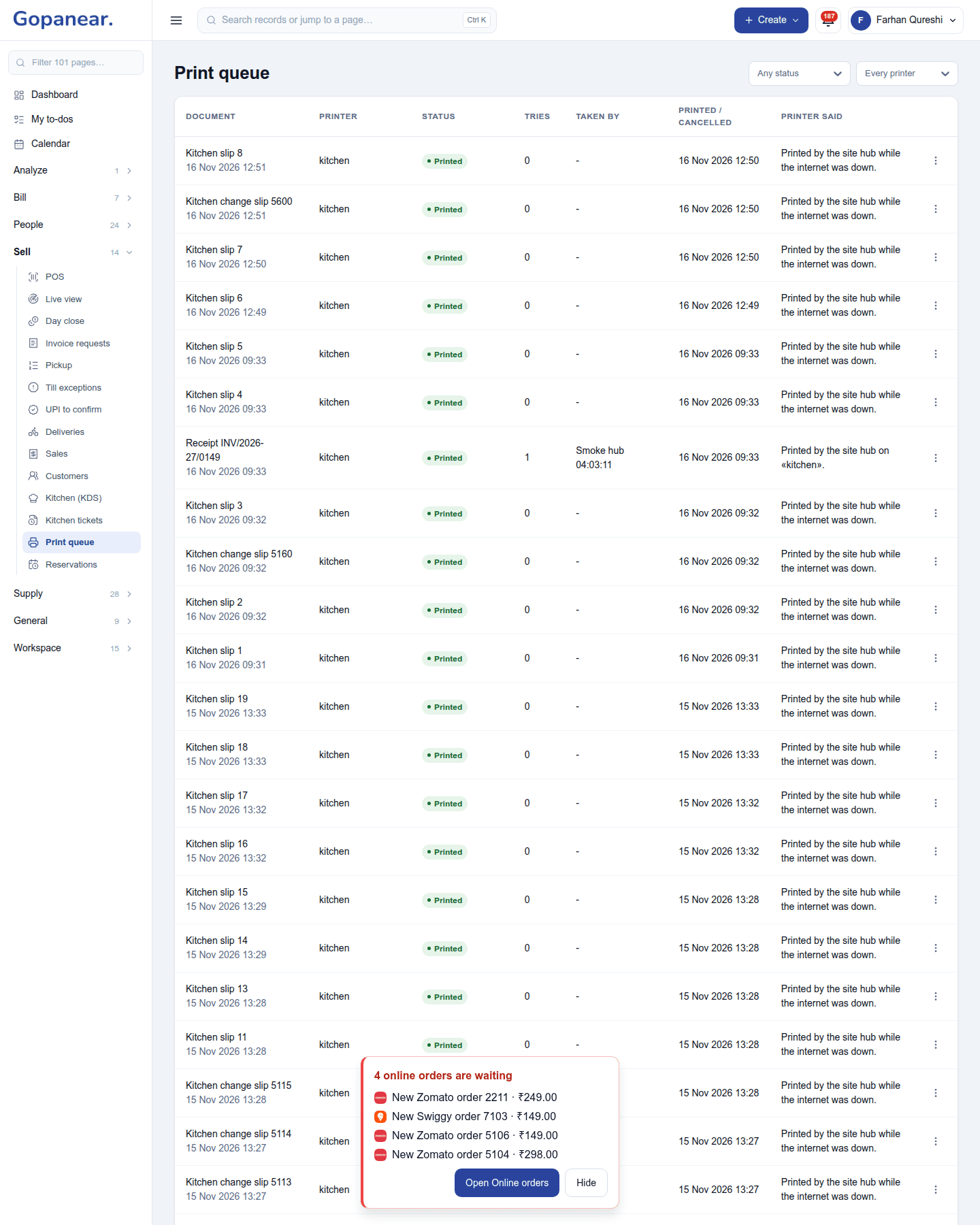
- Print queue: the kitchen slips sent to each station's printer, with whether each printed, and a reprint.
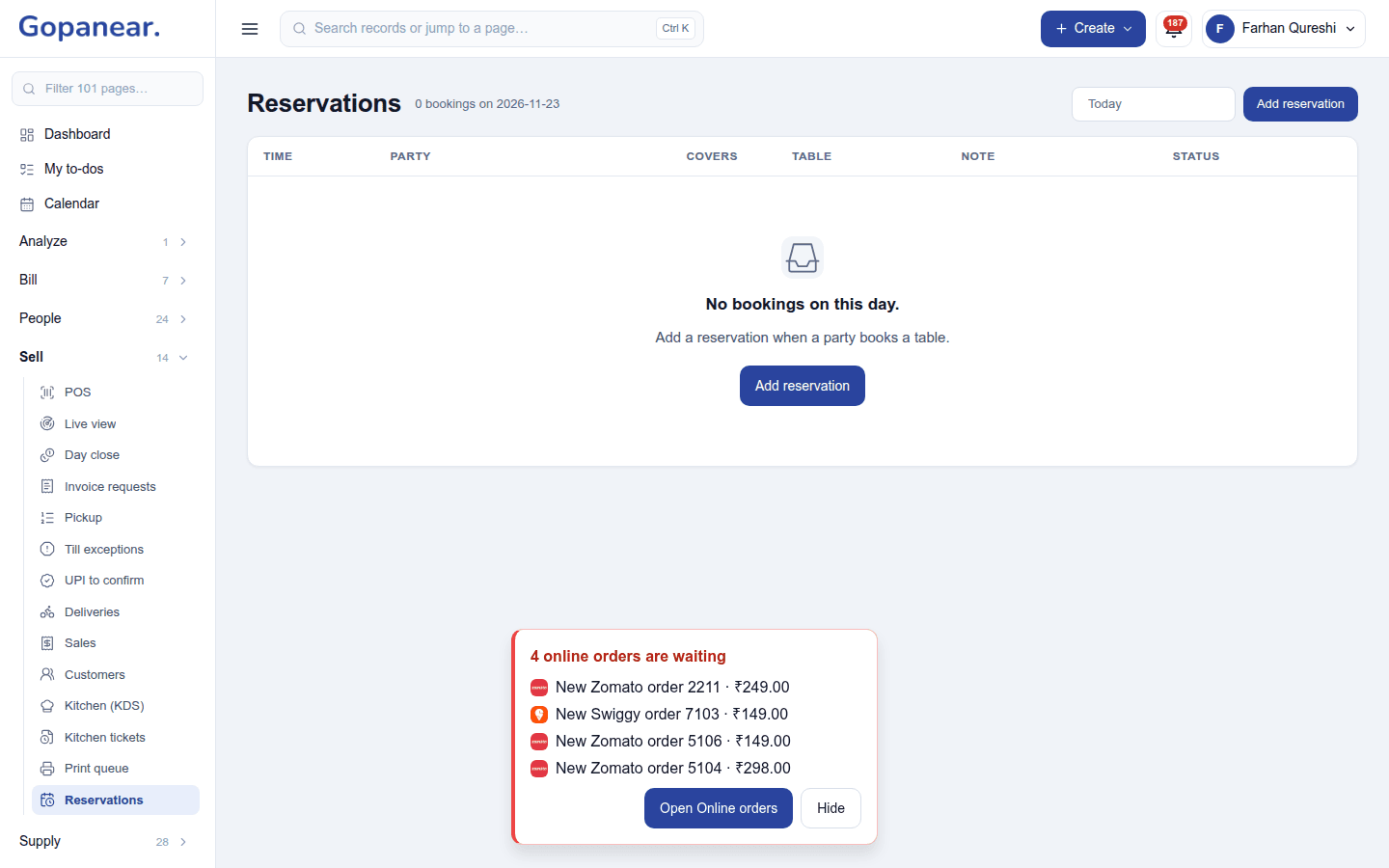
- Reservations (needs Use the till): table bookings for a day, with the time, party, covers, table, note and status. Add reservation books a table.
- The waitlist (on the same page): Add to the waitlist puts a walk-in party on the list (name, phone, covers, a note), marked Waiting from that moment. When a table frees up, the party's ⋮ menu → Table ready - text them sends one text (Your table at ... is ready) with your text message add-on, and the row says when. Then Seated, or Left without a table. Without a phone number or a text add-on, the screen says so: call them by name.
What a kitchen ticket shows
Every kitchen ticket (KOT) has the same layout, on 80 mm and 58 mm paper:
- Running Table at the top when the order adds to a table that already has an order in the kitchen. A fired course shows Course: Mains there instead.
- The date and time, then KOT - and the ticket's number.
- The station (when it is not the kitchen), the order type (Dine In, Pick Up, Delivery, Takeaway, as your order types are named), and Table No: or the pickup number. An order with a table and no order type of its own says Dine In.
- For an order from a delivery platform: the platform's name in large print (Zomato, Swiggy), Delivery (unless the order has its own order type) and Order No: with the platform's own order number.
- Guests and Captain (who took the order).
- Item and Qty., then each dish in bold with its quantity on the right and its note underneath.
Adding a note for the kitchen: on the till (web and desktop app), each dish in the order has a Cook note button; it opens a box for the note with the restaurant's quick notes as chips under it. On the captain phone, a dish's sheet has Note for the kitchen, with the same quick notes. The quick notes are set in Settings → Restaurant ops (KOT) → Restaurant. The note prints under the dish on the KOT and shows on the kitchen display.
A void, a cancellation or a move prints the same layout, headed VOID, CANCELLED or MOVED TO T6 in large print.
The last line reads Powered by Gopanear unless the workspace switches it off (Settings → POS → Print style); a ticket no longer says which device printed it.
Every printer on the site hub prints the kitchen ticket and the bill like a page, as most restaurant billing software prints them: in the print style's size and font, with the space on the left and right set there (Settings → POS → Print style). With Print as set to Printer's own letters, they print the same lines in the printer's own letters, centred on the paper.
Settings
Settings → Restaurant ops (KOT) → Restaurant holds the restaurant's set-up:
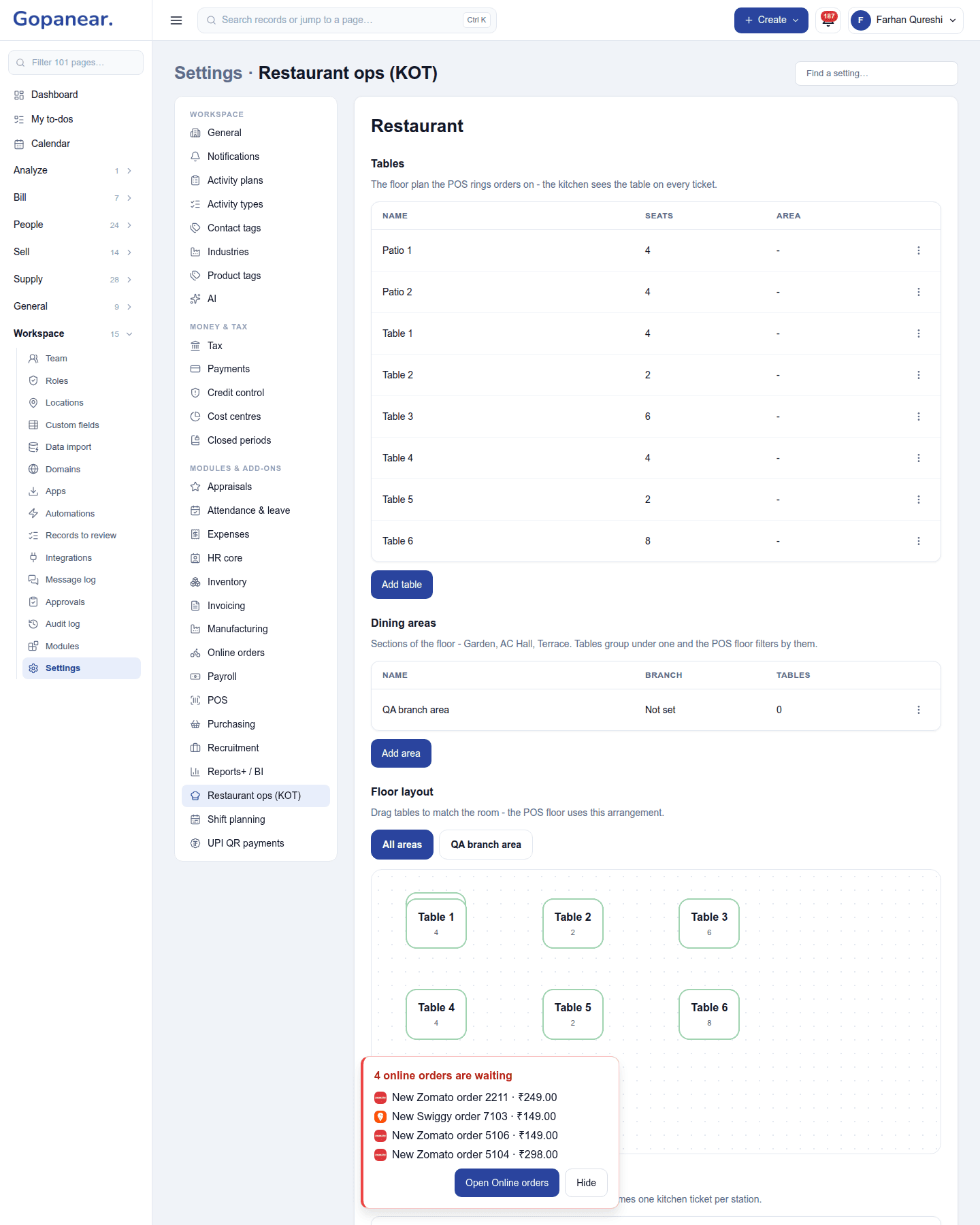
- Tables and dining areas (Ground floor, Patio), and the floor layout the till's Floor shows.
- The menu's kitchen details: each dish's station, preparation time, veg or non-veg and spice marks, and its course.
- Auto-print stations: which printer each station's slips go to.
- Branches (a workspace with locations): each dining area's Branch, and Orders with no branch print at for delivery platform and shop orders. A kitchen slip then prints only at its own branch's site hub.
- Quick kitchen notes: ready-made cook notes (less spicy, no onions) the till offers with one tap.
Permissions
| Permission | Allows |
|---|---|
View kitchen orders (kot.view) |
See the kitchen display, tickets, print queue, menu and floor. |
Manage restaurant (kot.manage) |
Set up the menu, courses, floor areas, tables and stations. |
Ready-made automations
| Name | Kind | What it does | Starts |
|---|---|---|---|
| Tell me when a kitchen ticket waits 20 minutes | Rule | Tells the workspace owner when a kitchen ticket is still not ready 20 minutes after it was sent. | On |
Turning it off
The kitchen screens leave the menu and orders stop raising tickets. The till keeps selling. Tickets already raised are kept.
In the desktop and mobile apps
- Restaurant desktop app: carries the kitchen display and prints kitchen slips straight to the printers over the local network (ESC/POS), offline included. The site hub routes every device's tickets to the kitchen with the cloud down. Online too, a kitchen display connected to the site hub shows a new order the moment the hub has it, before the cloud has raised its ticket.
- Several kitchen printers: each printer on the site hub prints the stations you choose. One printer can print several (Chinese and Mexican at one counter), and a station can print on several printers: tick it on the main printer and on the kitchen's, and both print every KOT for it. Any printer can also take every station without its own. A printer at the host table or the pass can keep a copy of every kitchen slip. Online orders print the same way. Bills and receipts print on every printer ticked Prints the bills (one or several); a till can choose its own instead.
- Captain: a waiter's phone sends rounds to the kitchen, fires courses, and rings when food is ready.
Related guides
- POS, Online orders, Desktop site hub, Captain app
- Module guides index