








































Storefront
The workspace's online shop on its own web address: a Shopify-compatible theme the business can choose and customise, product and collection pages, cart and checkout with delivery and online payment, customer accounts, and the shop's pages, menus and reviews.
| At a glance | |
|---|---|
| Type | Business module |
| Group | Sell |
| Needs | Nothing. Online payment needs a gateway (Settings → Payments); the recovery email for abandoned carts needs an email sender. |
| Included in | E-commerce, Shops & counters, Website |
| Offered to | Every industry pack |
| Permissions | Core: Manage store theme (theme.manage) for the theme, pages, menus and redirects; View catalogue for reviews and stock alerts; View orders for abandoned carts |
The module switches the shop on
There is a shop only where Storefront is on. Every workspace has its own address (<name>.gopanear.com, or its own domain under Workspace → Domains). With the module off, the shop's pages do not exist and the address opens the back office. With it on, the address serves the shop:
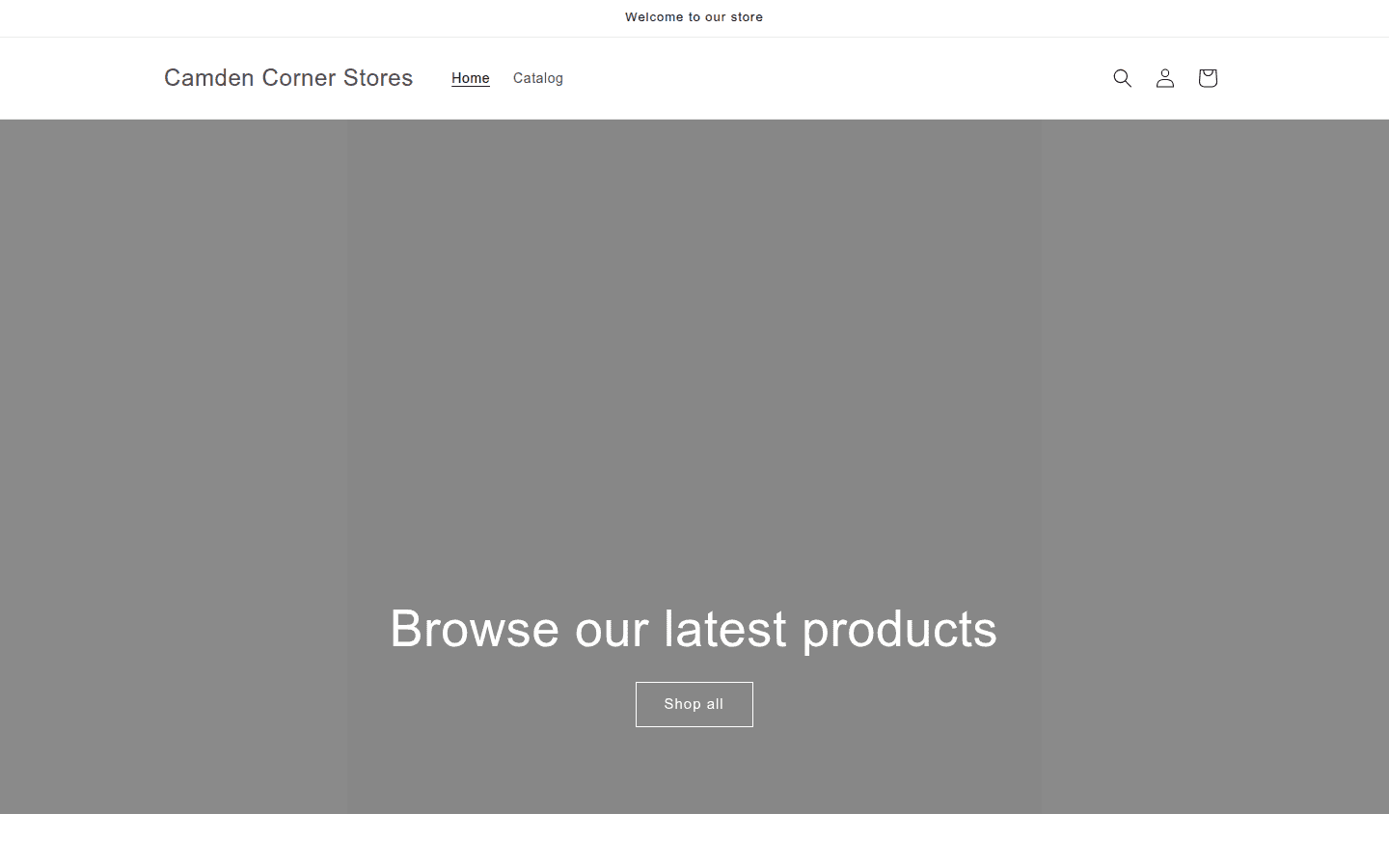
Shoppers browse collections and products, choose sizes and colours, add to the cart, and check out: as a guest or with an account, with a delivery address, a delivery option priced by the workspace's rules or the courier's rates, discount codes, and payment through the workspace's own gateway (or cash on delivery, or click & collect in store). Each order lands in Sales orders on the Online channel.
Switching it on
Workspace → Modules → Storefront → Enable (needs Manage modules). Online store and its screens appear under Sell, and Settings gains a Storefront page.
Themes
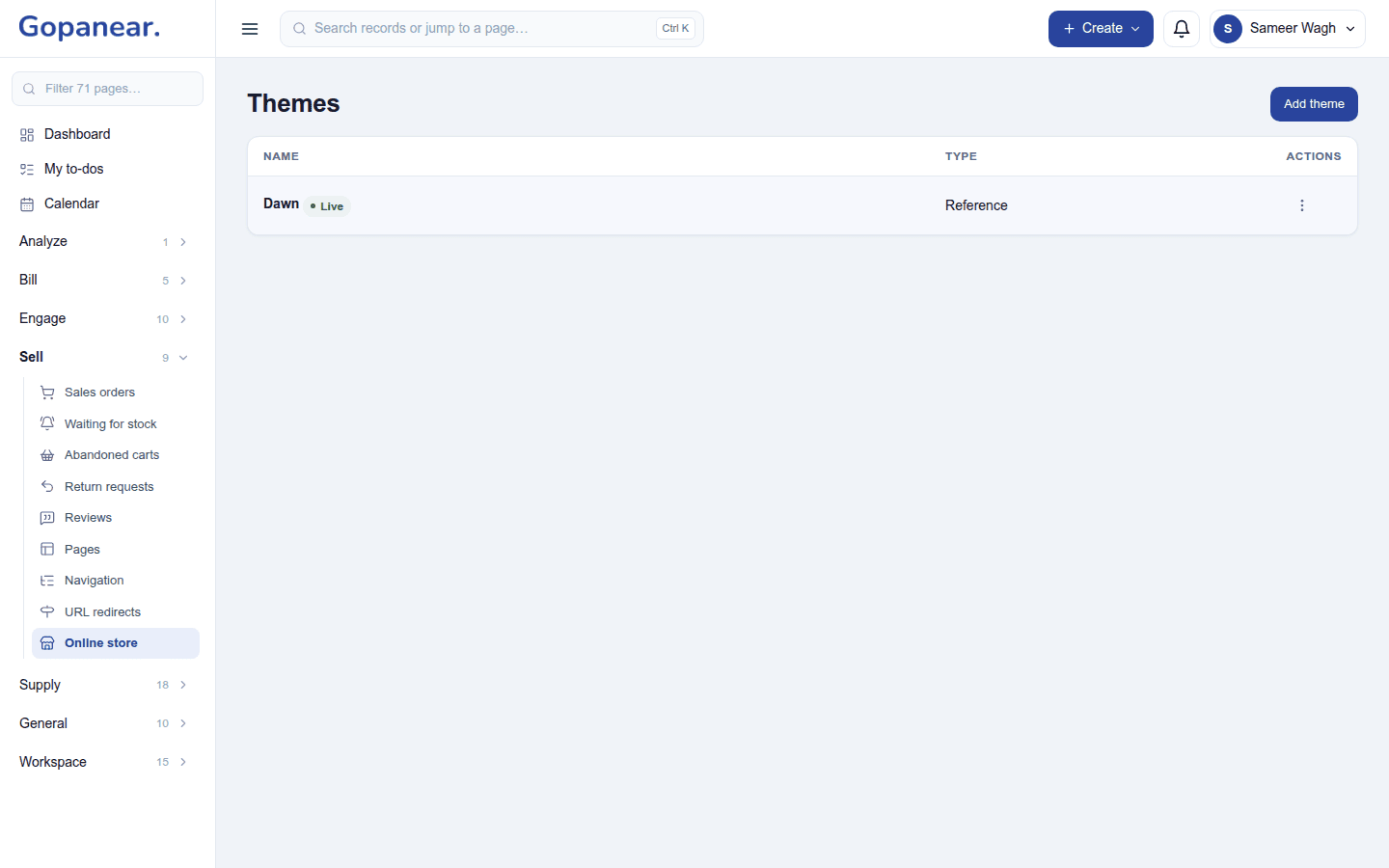
Sell → Online store is the theme library: the live theme at the top (what shoppers see) and the unpublished themes below. The bundled Dawn theme is always available; Add theme uploads a Shopify theme as a .zip, checked on the way in. A theme's ⋮ menu: Publish, Customize, Preview, Rename, Duplicate, Download.
Customize opens the editor: pick a template, edit its sections and blocks and the theme settings, and preview on desktop or phone. Edits save as a private draft until Save and publish.
The shop's content and care
| Screen | What it is for |
|---|---|
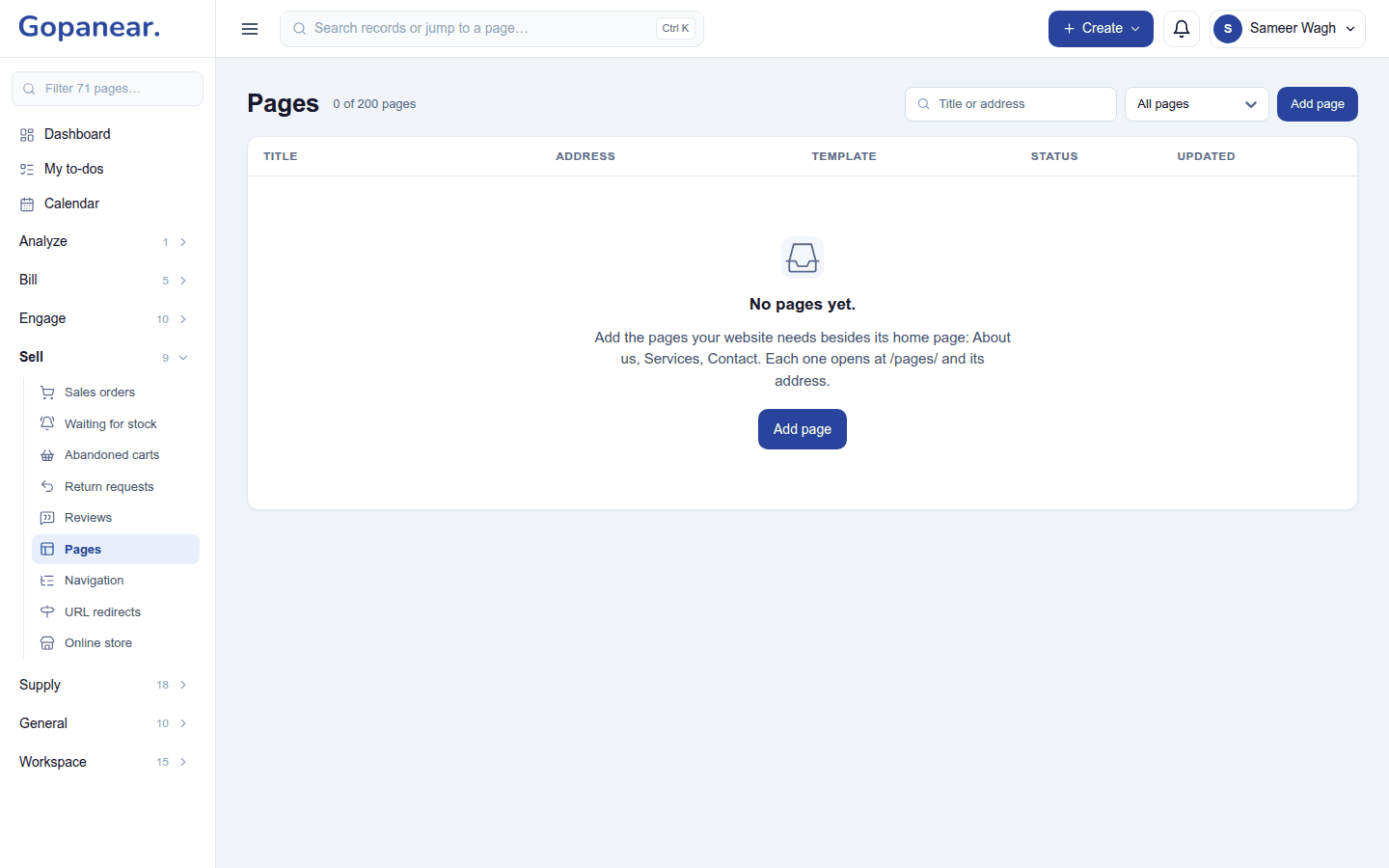
| Pages | Content pages (About, Contact, Terms …), with a contact form that becomes a CRM lead. |
| Navigation | The header's main menu and the footer menu. |
| URL redirects | Sends an old shop address on to a new page (301 or 302). |
| Reviews | Product reviews shoppers left, to publish or hide; the How was your order? email asks for them. |
| Return requests | What shoppers asked to send back from their order page, for you to approve or decline. |
| Waiting for stock | Shoppers who asked to be told when a sold-out product is back. |
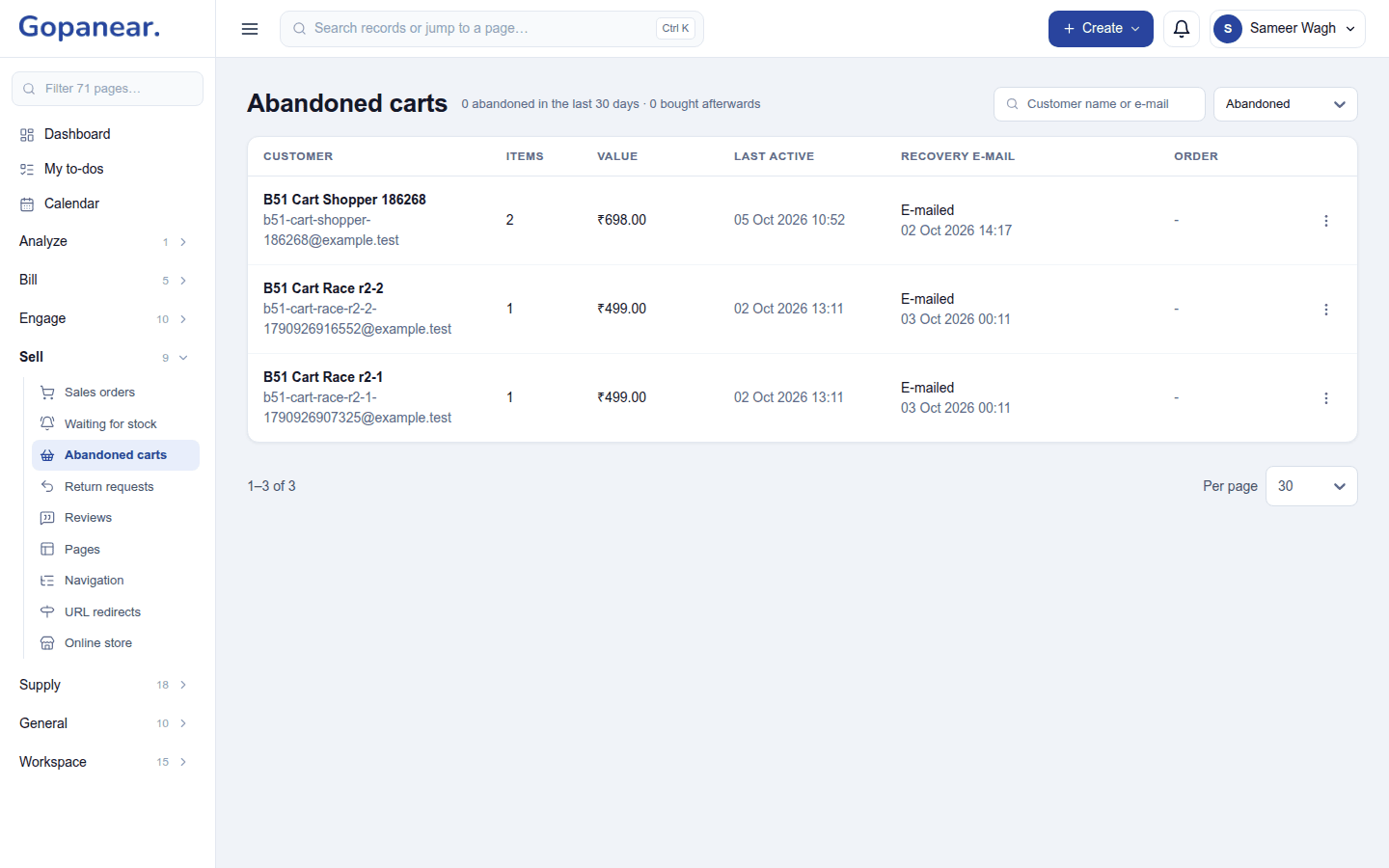
| Abandoned carts | Carts left at checkout, with the recovery email that brings shoppers back. |
Delivery slots. Give a delivery option time windows (Settings → Delivery options → Delivery slots, for example 10:00-13:00, 14:00-18:00) and the shopper must pick a delivery day and one of them at checkout. You choose how many days ahead are offered and how many orders one window takes; a full window is shown as full. The chosen slot is on the order, its tracking page and the customer's order page, and a cancelled order frees its place.
Return requests. Switched off at first. With Let shoppers ask to return delivered items on (Settings → Modules → Storefront), a delivered order's page shows Return items for as many days after delivery as you set (7 at first). The shopper picks what goes back, says why, may add up to three photos, and asks for their money back, an exchange or (with Loyalty & coupons on) store credit. You answer on Online store → Return requests: Approve (with an optional message) or Decline (with the reason, which the customer reads), then Mark as received and Close. For an approved exchange, Make exchange order places the replacement order for the same customer and address. A request books no courier and refunds nothing by itself: book the pickup and issue the credit note from the order, as for any return.
Order tracking. Once an order has a parcel, the shopper's order page shows Track this order, which opens the order's tracking page: the steps it has passed, the carrier and the tracking number. Shoppers can also find it at /track with their order number and the e-mail or phone they ordered with. See Sales orders.
Settings
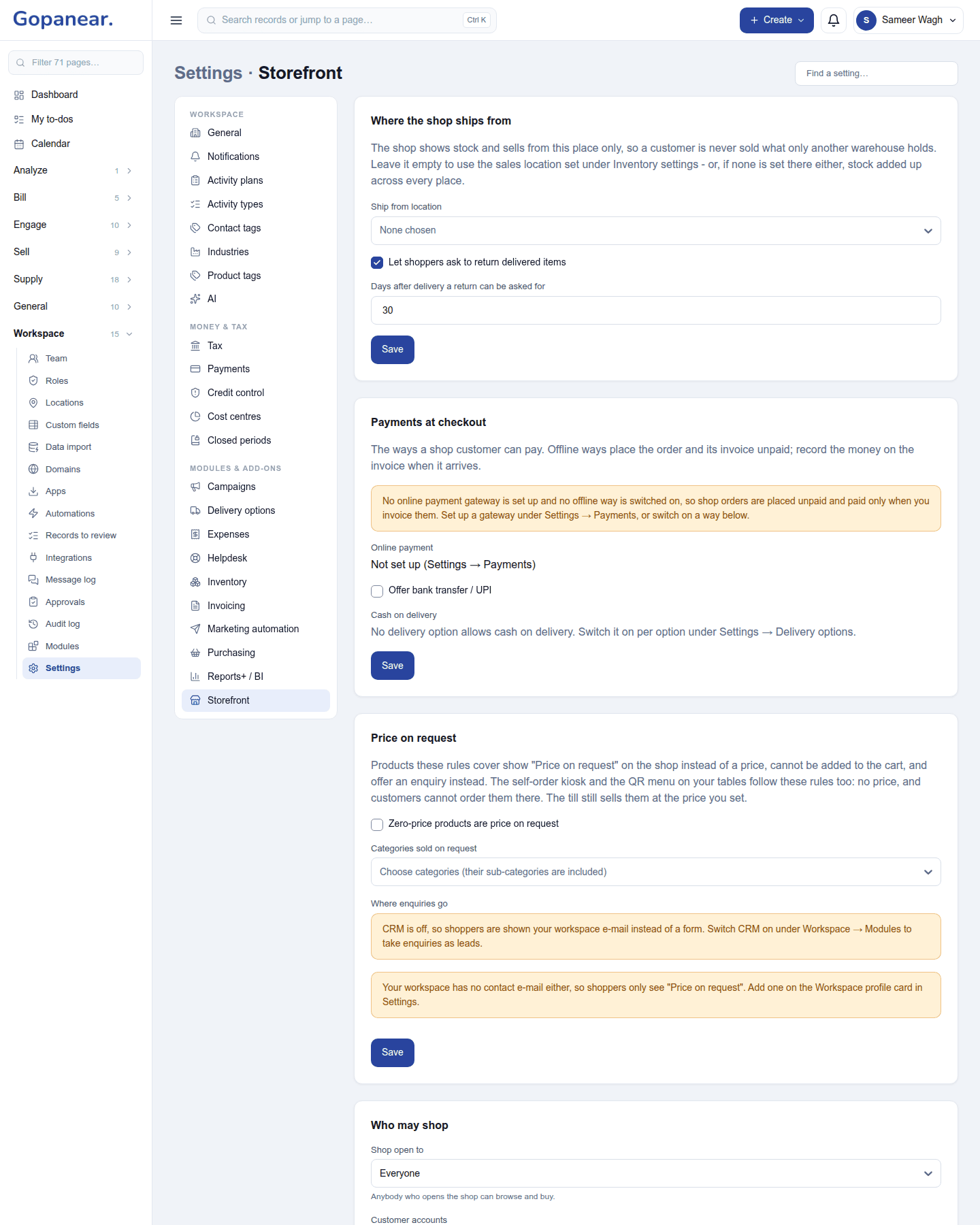
Settings → Storefront → Where the shop ships from: the location online orders are picked from (and their stock taken from). Delivery options and rates are under Settings → Delivery options. Who may shop and whether an account is needed, languages, the cookie banner, search listings and analytics each have their own guide below.
Ready-made automations
| Name | Kind | What it does | Starts |
|---|---|---|---|
| Tell me about each online order | Rule | Tells the workspace owner when an order comes in from the online shop. | On |
| Tell me about each return request | Rule | Tells the workspace owner when a customer asks to return items from an online order. | On |
| Email the customer the answer to their return request | Rule | When a return request is approved or declined, emails the customer your answer and a link to the request. | On |
Turning it off
The shop closes: its pages return not found and the address opens the back office. Themes, pages, menus and orders are kept, and the shop reopens as it was when the module goes back on.
In the desktop and mobile apps
Not carried. Online orders reach the restaurant till through Online orders.