








































Loyalty & coupons
Gives customers points on what they buy and lets them spend those points at the till. The programme's rates, every customer's balance and every point earned or spent are on one screen.
| At a glance | |
|---|---|
| Type | Business module |
| Group | Engage |
| Needs | Nothing. Points are spent at the POS. |
| Included in | Shops & counters, E-commerce, Hotel / guest house, Salon & spa, Vet clinic & pet shop |
| Offered to | Every industry pack |
| Permissions | View loyalty (loyalty.view), Manage loyalty (loyalty.manage) |
Coupons are discount codes, kept under General → Discounts for every workspace; they are not part of this module.
What it does
- Earning: every order placed with a customer's name earns points on its total, at the workspace's rate, from any channel: the till, the online shop, a sales order.
- Spending: at the till, points settle part of the bill as a payment, the way a gift card would. The bill, its tax and the points the sale earns stay exactly as they are.
- Gift cards: sell a card for any amount. Its code is redeemed as store credit by whoever it is given to.
- Store credit: money a customer is owed, kept to spend with you: a refund kept as credit, or a redeemed gift card.
Switching it on
Workspace → Modules → Loyalty & coupons → Enable (needs Manage modules). Loyalty appears under Engage.
The Loyalty screen
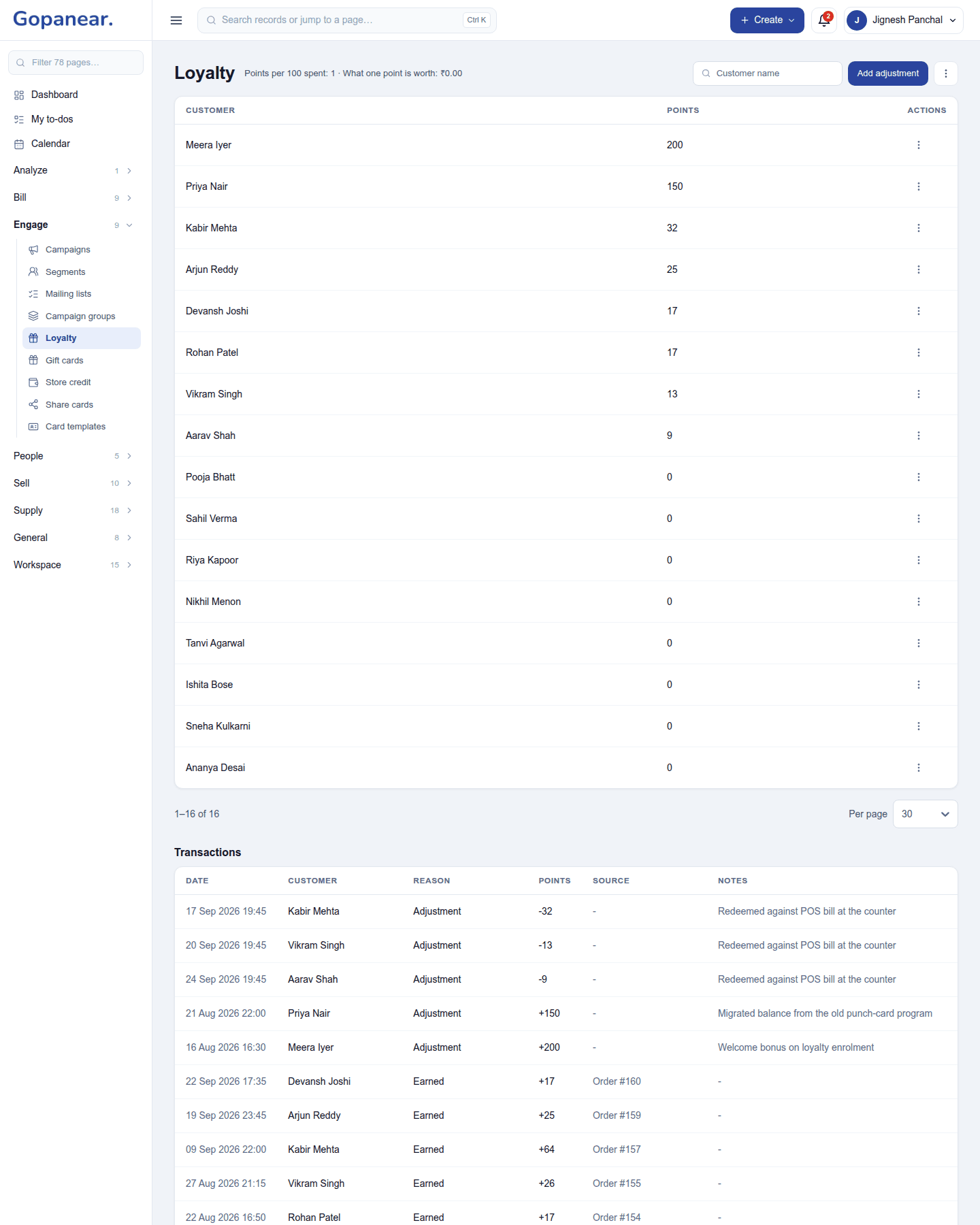
The rates in force are shown beside the page title. To change them, open the three-dot menu at the top right and choose Earning and redeeming (needs Manage loyalty). A popup opens with two settings:
| Setting | What it does |
|---|---|
| Points per 100 spent | Points earned for each 100 of the workspace's currency an order totals. 0 pauses earning without switching the module off. |
| What one point is worth | The value of a point when it is spent, in the workspace's currency. 0 means points cannot be spent: the till never offers them. |
| Smallest bill points can pay | Points can be used only on a bill of at least this. 0 means any bill. |
| Most of a bill points can pay (%) | The share of a bill points may pay. 100 means the whole bill. |
| Days before new points can be used | Points earned in the last N days cannot be spent yet. 0 means at once; 1 means not on the day they were earned. |
| Send the customer a code before their points are used | The till sends a one-time code to the customer's phone (or email) and the cashier types the code the customer reads out. |
Five more settings say how points are earned (each works as before until you change it):
| Setting | What it does |
|---|---|
| How points are earned | Points for every 100 spent (as above), or Cashback: points worth a share of the bill, at the value of one point. |
| Cashback (%) | With cashback: the share of the bill paid back in points. 5% of a ₹1,000 bill at ₹1 a point is 50 points. |
| Punch card: every Nth visit | Every Nth order of a customer earns extra points (0 = no punch card). |
| Points for that visit | The extra points the Nth visit earns. |
| Orders that earn points | Tick the kinds of order that earn: at the till, the online shop, delivery platforms (Zomato, Swiggy and the others), invoices and bookings. None ticked means all, as before. |
The last four of the first table keep points from being gamed. Each is off until you set it, so a programme that never sets them works exactly as before.
The list of customer balances comes straight under the title and shows each customer's points. Type a name in the search box at the top to filter it; it searches as you type. View transactions on a row shows only that customer's points.
Transactions lists every movement: date, customer, reason (earned, spent or adjusted), points, the order it came from, and notes.
Add adjustment posts a manual change: pick the customer, enter the points (50 or -25) and a reason. Use it to move a balance in from an old punch-card programme or to correct a mistake.
Gift cards
Loyalty → Gift cards lists every card with the end of its code, its value, who bought it, who it is for, when it was sold, when it expires and whether it has been redeemed.
- Sell gift card: choose the customer buying it, the value and how they paid. You may add who it is for, their e-mail, a message and an expiry date. The whole code is shown once, with Copy code, and e-mailed to the recipient (or the buyer when no recipient e-mail is given). The buyer's money is recorded as a deposit, with a receipt.
- Redeem a card: type the code and choose the customer redeeming it (a shopper can also redeem it themselves in the shop). The whole card becomes their store credit. A code works once. A wrong, cancelled or expired code says so.
- Cancel card (⋮ on a card nobody redeemed): the code stops working and the money is the buyer's deposit again, to refund or apply to their invoice.
Until a card is redeemed its money is held: it cannot be applied to the buyer's own invoices.
Store credit
Loyalty → Store credit lists who holds credit and how much is left, the largest first.
A customer gets store credit two ways:
- A refund kept as credit. In an invoice's Refund dialog choose Store credit the customer keeps to spend here. No money leaves: the amount moves to the customer's account.
- A redeemed gift card.
It is spent two ways:
- At the online checkout, by the shopper: a signed-in customer with credit sees Use my store credit on the checkout page. It is taken off the order first and anything left is paid the usual way.
- By staff: open the customer's invoice and choose Apply a deposit. Their store credit is listed with any other deposit, and can be spent in parts.
Shoppers see their credit and redeem a gift card themselves on Store credit and gift cards, linked from their account page in the shop.
- At the till: with a customer on the bill who has credit, Store credit is one of the ways to pay, capped at what they have. A till with no internet takes it up to the amount it last synced.
When a till sale paid with store credit is returned, that part goes back to the customer's store credit by itself, before any money is handed back.
Store credit is never given without money behind it: it comes only from a refund or a paid gift card.
The till's Store credit way to pay is added to Settings → POS → Payment methods when Loyalty & coupons is on. Rename it, switch it off, or leave it off a till there, like any method. The phone tills do not offer it.
Memberships & top-ups
Loyalty → Memberships & top-ups brings cash in before the visit. It has three views:
-
Top-ups. A customer pays up front and the money waits as their store credit, spent at the till or on an invoice like any store credit. Top up wallet asks for the customer, a top-up plan (or an own amount) and how they paid (cash, card, UPI or a bank transfer). The money is recorded as a real customer deposit in the way it was paid. A top-up can never be paid with store credit or points.
-
Memberships. Who holds a paid membership, from when to when, and the order that bought it.
-
Plans (needs Manage loyalty):
- a top-up plan says what the customer pays and what they get on top: bonus points (pay ₹1,000, get 200 points), bonus money in the wallet (pay ₹1,000, get ₹1,200), or both. The store credit is always exactly what was paid; bonus money is kept apart from it, because no money came in for it. The till shows the two together as the customer's wallet. When the wallet pays a bill, the bonus share comes off that bill as a discount (so the bill's tax falls with it) and only the paid share is spent from the store credit. The share follows what the customer holds: after paying ₹1,000 and getting ₹200, one-sixth of every wallet payment is bonus. Bonus money is spent when ringing up a sale or settling a table's bill; settling an order or a customer's dues spends the paid credit only. Bonus money spent is not given back when a bill is refunded;
- a membership plan is sold as one of your products (make a product such as Gold membership first, at its price and tax). It lasts the plan's months and multiplies the points a member earns (200% is double). Sell the product to a customer at the till or on an invoice and they become a member; a second sale before it ends extends it from the day it ends, so no days are lost.
-
Tiers (in the same Plans view) reward regulars: a tier says what a customer must have spent in the last 12 months and how many more points they earn there (150% is half as much again). A customer moves up or down by themselves as their spending changes; nothing has to be assigned. When a customer is both a member and in a tier, the better rate applies.
-
Free-item rewards (in the same Plans view) give one product for points, for example Free coffee for 200 points. Add free-item reward asks for a name, the product given and the points; untick Offered at the till to stop offering it.
Switching a plan off stops it being offered; top-ups and memberships already taken stay as they are. A cancelled order's membership is not taken away: the shop decides.
Spending points at the till
With a point value set, the till's customer chip shows the customer's points (120 pts), and the payment panel offers points as a way to pay: Points to spend - up to N. The points are priced on the server against the customer's balance at that moment, so two tills can never spend the same points twice, and a sale replayed after the till was offline never spends them again.
The rules you set apply at the till:
- Up to N never goes above what can be spent now: points still in their waiting days, and anything over the share of the bill points may pay, are left out.
- A bill under the smallest bill says so as soon as points are applied: Points can be used on a bill of ₹300.00 or more.
- With the code switched on, applying points shows Send code and a box for the code. The code goes to the customer by text message (with a text message add-on switched on) or by email, says how many points it is for, works for 10 minutes and once only. The sale cannot be completed until the code is typed, and a wrong, old or used code is refused in words. At most three codes a customer in 10 minutes.
- With the code switched on, a till with no internet does not offer points (no code can be checked offline).
Free items. With a customer on the sale (or on a table's bill), the till's menu shows Free item. It lists your free-item rewards with the customer's points; those the points do not cover are greyed out. Picking one adds the product, one of it, at its price with the same amount off, so stock, the kitchen ticket and the sales reports see the item and the discount reports see the reward. The points are spent when the sale or the round is sent, once, even if the till sends it again. A reward is for a product sold by the piece; it needs the internet, to read the customer's points.
Spin to win. Under Loyalty settings, list the wheel's prizes in points, such as 10, 20, 50, 0 (a 0 is better luck next time). Every e-bill with a customer then shows Spin to win: one spin per bill, the prize drawn on the server, and its points added to the customer at once. Leave the list blank for no wheel.
Points go back when an order is cancelled. A cancelled order takes back the points it earned and gives back the points that paid for it, in one line of the customer's transactions (reversed). It happens once, however many times the order is cancelled. A return of part of an order does not move points.
Permissions
| Permission | Allows |
|---|---|
View loyalty (loyalty.view) |
See the programme, balances and transactions. |
Manage loyalty (loyalty.manage) |
Set the rates, post adjustments and cancel a gift card. |
Record payments (payments.record) |
Sell and redeem gift cards, and refund an invoice as store credit. |
Ready-made automations
| Name | Kind | What it does | Starts |
|---|---|---|---|
| Email a gift card to whoever it is for | Rule | When a gift card is sold, emails its code to the recipient, or to the buyer when no recipient e-mail was given. | On |
| Wish customers a happy birthday | Rule | On a customer's birthday, emails your greeting and an offer to come in. | Off |
| Wish customers a happy anniversary | Rule | On a customer's anniversary, emails your wishes and an offer. | Off |
| Ask customers who have not been back to return | Rule | When a customer's last order was 45 days ago, emails that you miss them, with their points. | Off |
| Thank customers at their 5th, 10th and later visits | Rule | At a customer's 5th, 10th, 25th, 50th and 100th order, emails a thank-you with their points. | Off |
The four greetings are the ready-made loyalty journeys. They start off because each carries an offer: switch on the ones you want under Automations, and change their words there. Each goes only to customers who agreed to marketing and are not on do-not-disturb.
Turning it off
The screens leave the menu, orders stop earning points and the till stops offering them. Balances and transactions are kept. Gift cards can no longer be sold or redeemed, and a refund can no longer be kept as credit; store credit already held stays a deposit and can still be applied to an invoice.
In the desktop and mobile apps
The restaurant desktop app carries points with the till: each customer synced to the till brings their points, and offline the till says Points are as this till last synced. Offline it applies the smallest bill and the share of a bill as last synced, and offers no points at all when the code is switched on. The Captain phone app does not take payment. Free item comes with the till on the desktop while it is online; the phone apps do not offer it.
Related guides
- POS, Discounts, Contacts
- Module guides index