







































POS
The till: ringing up sales at the counter (or running open tabs on a restaurant floor), taking payment by cash, card, UPI, points or on account, printing receipts, taking returns, and closing the day's cash. It keeps selling when the internet drops.
| At a glance | |
|---|---|
| Type | Business module |
| Group | Sell |
| Needs | Nothing |
| Needed by | Restaurant ops (KOT) |
| Included in | Shops & counters, Restaurant, Hotel / guest house, Clinics, Bakery & sweet shop and other counter packs |
| Offered to | Shops, food, hotels, health counters, salons, gyms, repair shops, wholesale, manufacturing, charity and club counters (not schools, consultancies or agencies) |
| Permissions | Use the till (pos.use) and seven more (see Permissions) |
Switching it on
Workspace → Modules → POS → Enable (needs Manage modules). POS and its boards appear under Sell, and Settings gains a POS page. A pack that sells over a counter has it on from the start.
The till
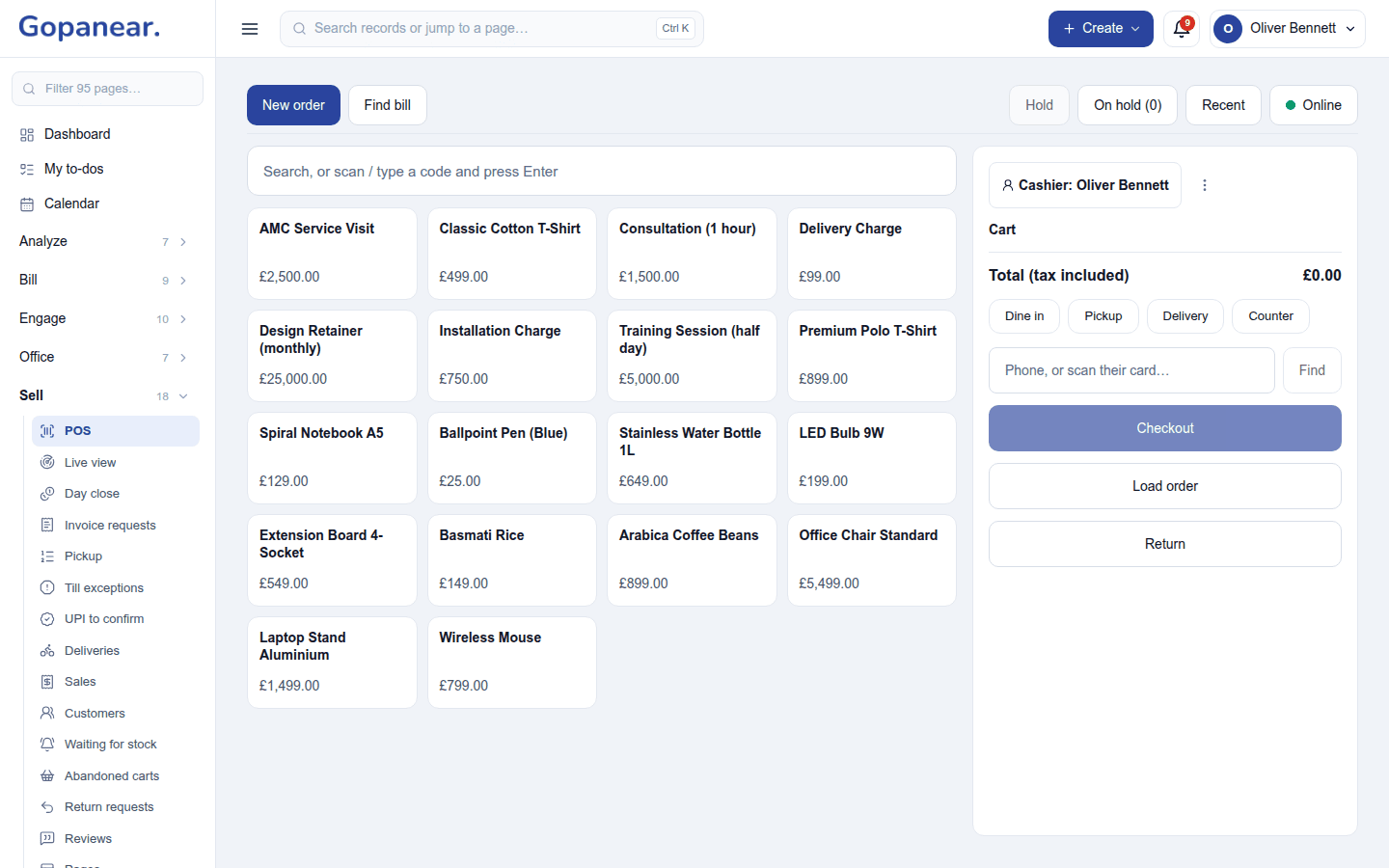
Sell → POS opens the till: the product grid on the left (only products sold on the till), the cart on the right.
- Find items by tapping, by the categories, or by typing or scanning a name, short code, SKU or barcode and pressing Enter. The categories run down the left of the menu; Categories: Top beside the search box puts them in a strip above the tiles instead, kept for that till. A screen narrower than 1280 px always shows the strip. A product with variants opens a chooser; a product sold by measure takes a typed quantity (0.85 m³, 38.5 kg).
- The cart holds the lines, the customer (Phone, or scan their card… → Find), the order type (Dine in, Pickup, Delivery, Counter), discounts and price changes (with permission), and the total. It stays in sight while you scroll the menu: its header, total and buttons stay put, and when an order has more lines than fit, only the lines scroll inside it, with the line you just added in view. On a phone the cart sits under the menu and scrolls with the page.
- Checkout opens Collect payment: the workspace's payment methods, split across several, round-off, tip, and points for a customer with a loyalty balance (Loyalty). Offline, payment is cash, a static UPI QR (recorded as to be confirmed), a card-terminal slip, or on account within the customer's last-synced limit.
- Settle for less (a table's bill): when the payments come to less than the bill, someone holding Settle bills for less ticks Settle for less - write off ₹15 and says why. The bill and its tax stay as issued, the customer owes nothing, and the rest is written off (to the Settlement Write-off account when Accounting posts). Day close lists Bills settled for less and Written off apart from what was collected, and Reports → Bills settled for less lists each one with its reason and who settled it. A whole bill is never written off this way (mark it complimentary), and a bill put on account cannot be settled for less. Without the permission the option is not shown, and the server refuses it in words.
- Store credit (Loyalty): for a customer who has some, Store credit is one of the ways to pay, capped at what they have; the rest is paid another way. Offline it is taken up to the amount the till last synced, and if the credit turns out to be spent the bill is kept, the rest stays owed and the order is flagged for the office. A return gives the store credit part back to the customer's credit by itself, before any money is handed back, and Day close lists what was paid with store credit.
- The top bar: New order, Find bill, Live view, Pickup board, Item on/off, Hold and On hold, Recent, and the till's Online state. On a restaurant's floor, New order starts a new walk-in order; over an open table it asks first and goes back to the floor. Load order settles an order taken elsewhere; Return takes a return.
Each sale is a sales order and an invoice, posted to the books when Accounting posts by itself.
What a printed bill shows
Every bill and receipt printed on a thermal roll has the same layout, whether it comes from the till, the desktop app, the site hub's printer or a phone. It fits an 80 mm (3 inch) or a 58 mm (2 inch) roll.
- The shop: its name, address, phone and tax number, then the receipt header. The address and tax number come from Settings → Tax and the phone from Settings → General → Workspace profile, the same details your invoices print. Settings → POS shows them at the top of its print settings (Printed under your name on every bill), with a link to each place to change them. It warns when no address is saved, so bills would print without one. Use the receipt header only for extra lines, such as a food licence number.
- Name: the customer's name, or a blank line to write one on.
- Date and Cashier on the left half, with the order type and table (Dine In: 2) and the Bill No. on the right half.
- The items:
- On 80 mm paper: Item, Qty., Price, Amount.
- On 58 mm paper: each item's name with its amount, and qty x price under the name.
- Total Qty, with Sub Total, the discount, taxes, service charge, round off and tip beside it.
- Grand Total in bold at the right, then You saved ₹… when products sold below their MRP (details), the payments and the receipt footer (Thank you, visit again! when there is none).
The parts are divided by solid lines. A bill printed through the computer's own print window, and a receipt PDF, is printed in a clear sans-serif font (Tahoma on Windows) with the same small margin on the left and the right, like a restaurant's usual bill. A long value, such as a bill number, moves to the next line whole. Every site printer prints bills and kitchen tickets the same way. All of it is set in one place, Settings → POS → Print style, never on each printer:
- Print as: Drawn (the usual) or Printer's own letters (fastest; the slip is centred on the paper, but the size, font and space below do not change).
- Print text size: 70% to 160% of the usual.
- Print font: Clear (Tahoma), Arial, Serif or Typewriter.
- Space on the left and Space on the right: in mm (0 to 10, 2 usual), between the edge of what the printer prints and the text. Raise one side if a printer prints closer to one edge than the other. They apply to the receipt PDFs, the computer's own print window, every drawn slip and the Retail Billing phone's receipt.
- Print "Powered by Gopanear": the last line of every bill and kitchen ticket, on unless switched off.
Short fields on this screen share a row.
A bill printed before payment says Bill - not a tax invoice. A sale made with no internet says Provisional - not a tax invoice until the server numbers it.
A long bill prints in one piece, however many items it has. A receipt PDF (and the bill before payment printed from a browser) is one page exactly as long as the bill, so the printer never cuts it partway. A short bill uses only the paper it needs. A site printer that draws the slip (Print as: Drawn) draws the whole bill or kitchen ticket at its real length. Before 24 Nov 2026 a drawn slip was cut at about the height of the computer's screen, around 12 cm of 80 mm paper, so a long bill lost its last items and its Grand Total. A desktop app installed before then needs updating to get this. A bill printed through the computer's own print dialog follows the paper chosen for that printer: for a receipt printer, choose its roll paper (the longest length the driver offers), not a page size.
In the desktop app, bills and receipts print straight away on the site hub's printer for bills, with no print window or dialog. They print on every printer ticked Prints the bills on the Site hub page (one or several), unless this computer chooses its own under Site hub → This computer → Bills print on. With none ticked, the hub's only printer prints them when it has just one. A computer with no site printer prints on its own printer through the system's print dialog.
Restaurant mode: the floor
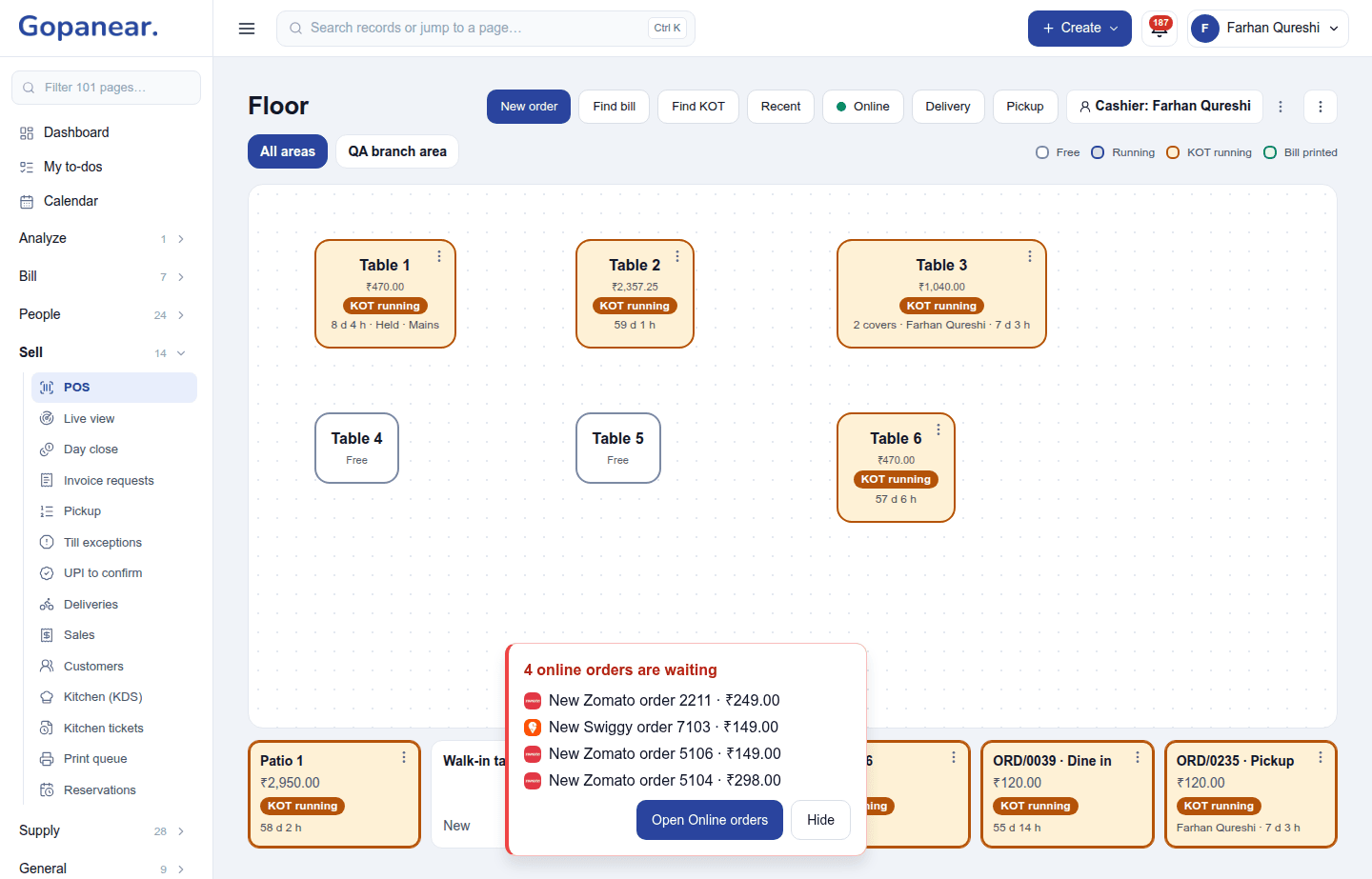
Where the till runs open tabs (the restaurant setting), it opens on the Floor: every table as a tile (Free, Running, KOT running, Bill printed), walk-in, pickup and delivery tabs below. Picking a free table starts a new tab at it: the header names the table (Table 4 · New tab) and Dine in is chosen. Choosing Pickup, Delivery or Counter instead takes the table off the new tab; choosing Dine in again puts the same table back. Picking a table with a tab opens that tab: add a round and Send round to the kitchen (KOT); Print bill prints Bill, not a tax invoice; Settle takes payment for the whole tab. Covers and the server, cook notes, courses, Transfer table, Merge tables, Split the bill, moving items between tabs and Cancel tab are on the tab and its menu.
The boards
| Board | What it is for |
|---|---|
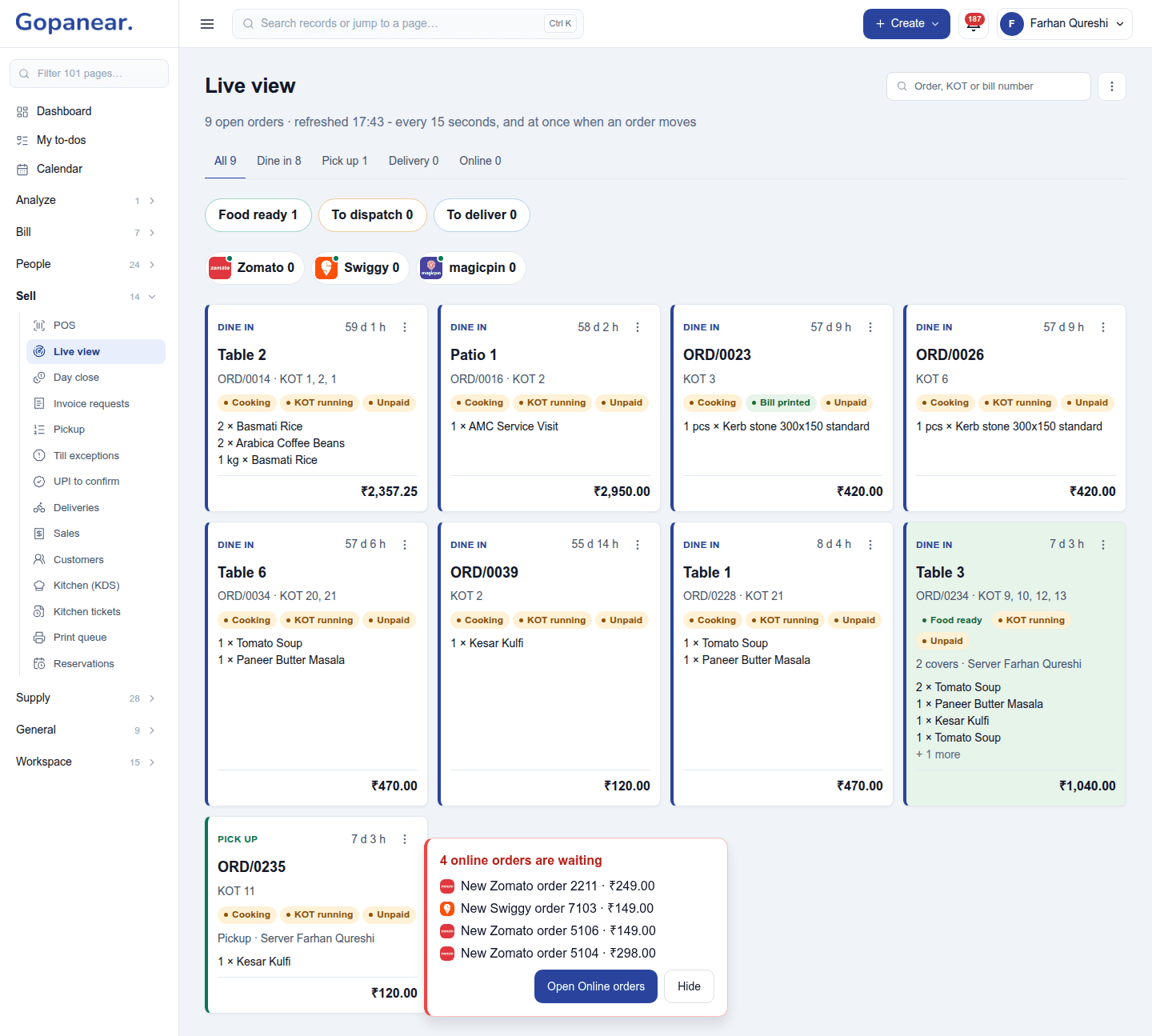
| Live view | Every open order on one board, by dine-in, pickup, delivery and online, with what is food-ready, to dispatch and to deliver. |
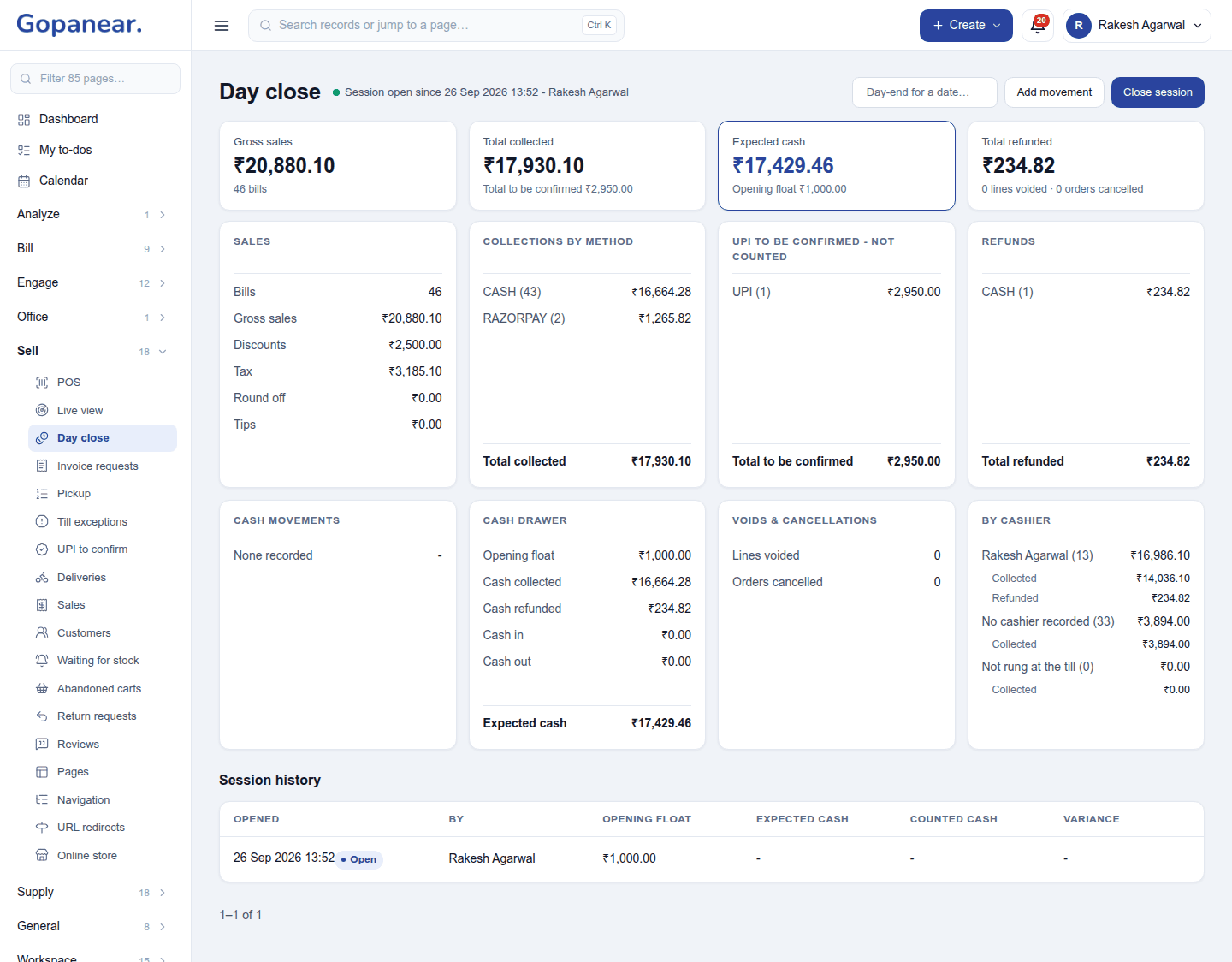
| Day close | The cash session: opening float, sales, collections by method, refunds, cash in and out, expected cash, by cashier; Close session with the counted cash. |
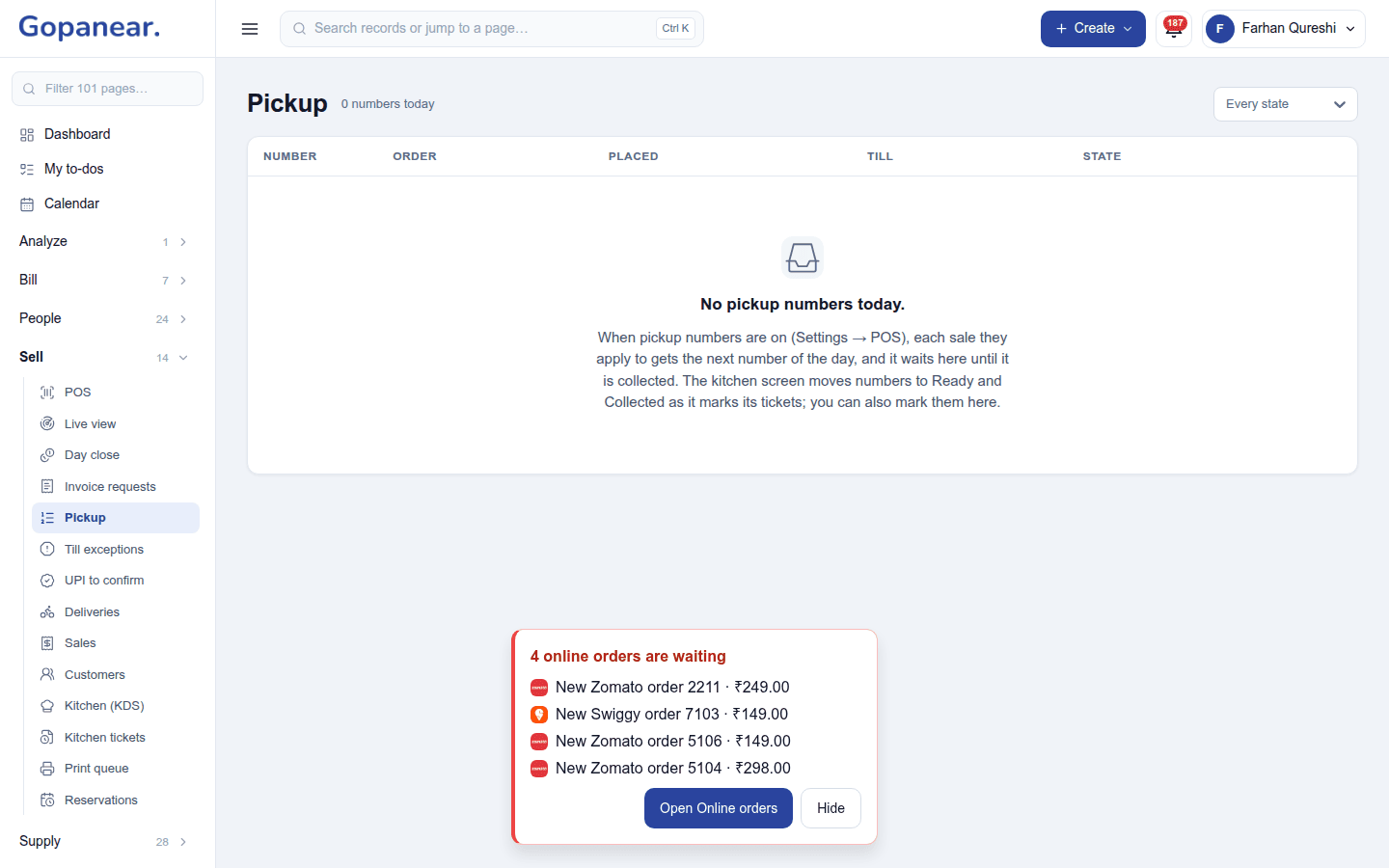
| Pickup | Pickup numbers and the order-ready board shown to waiting customers. |
| Deliveries | Orders going out with the workspace's own riders, or with an outside fleet's rider when a rider add-on is on (Book an outside rider in a row's menu: see uEngage Flash riders). Copy the tracking link gives the customer's own page for the order: being prepared, a rider on it, on its way, delivered, with the rider's first name and an outside fleet's live map link; it shows nothing of the customer's address or phone. With Text the customer a tracking link when a delivery goes out (Settings → Point of sale, and a text message add-on), the customer gets it once as the order leaves. |
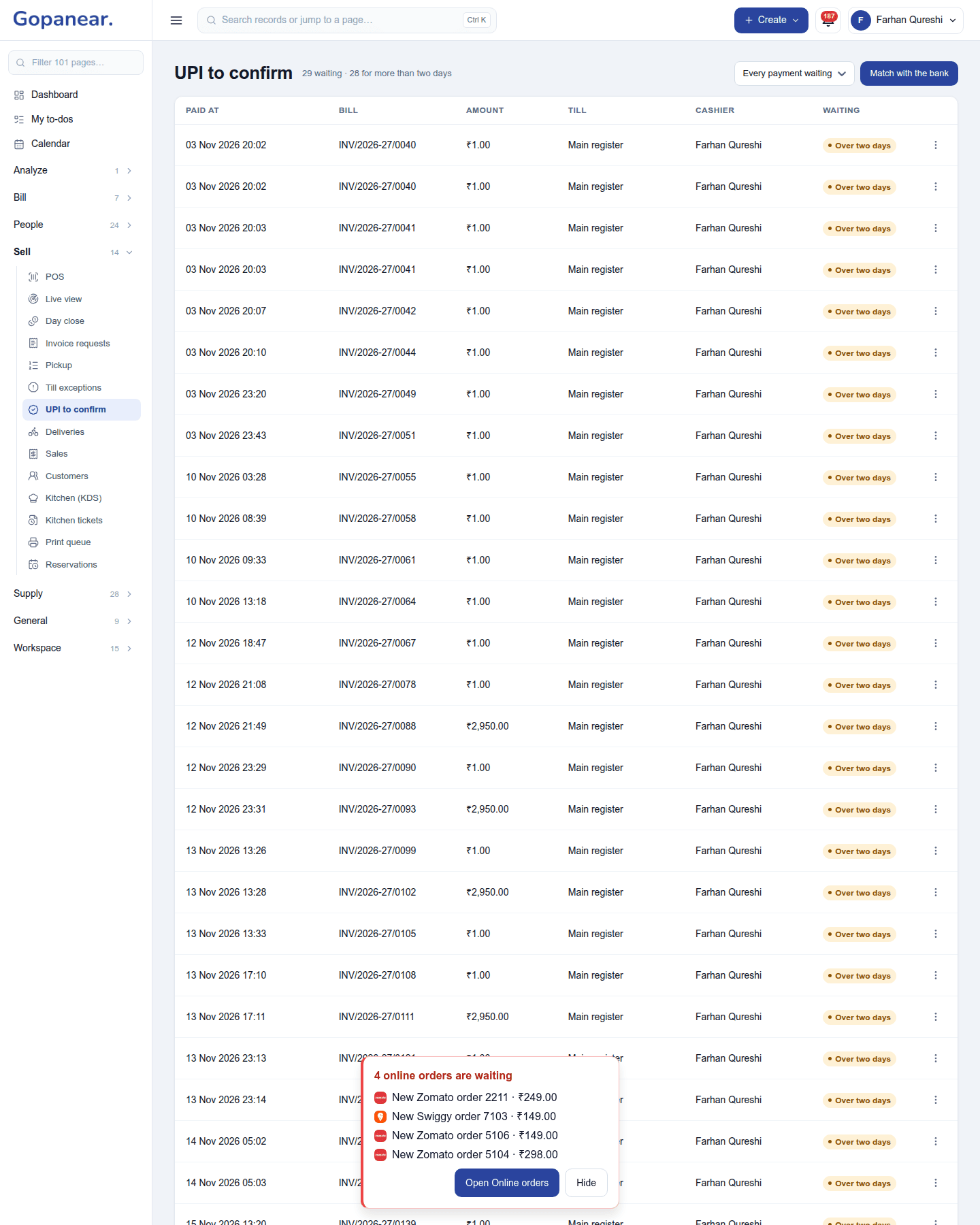
| UPI to confirm | UPI payments taken on the static QR, to confirm against the bank or mark not received. |
| Till exceptions | Sales a till could not send, kept with the reason for a manager. |
| Invoice requests | Customers who asked for a tax invoice from a receipt's QR code. |
| Sales | Every sale rung at the tills, newest first: the bill's number, when, the customer, the items, the total, how it was paid, the till and whether it is paid, part returned, returned or cancelled. Search by any part of a bill's number or a customer's name or phone; pick a day or a till. View shows the whole sale and downloads its invoice. |
| Customers | The till's customers by name, with their phone, loyalty card, what they owe, points and credit limit. Search by name, phone or card, or show those who owe money. Their sales lists what a customer bought; Add customer makes one from a name and a phone. |
Bringing the menu in
A menu goes in through Products → Import: a file of ours, a Petpooja menu export (its items and add-ons files), or a file from any other system, which is converted with the workspace's own AI provider (Settings → AI) after you agree. One row per dish carries its category, variations (Half: 160; Full: 280), add-on groups (Tandoori Breads; Desserts) and, with Restaurant ops (KOT), its veg mark, kitchen station and prep time. Categories and add-on groups of the same name are used, dishes already on the menu are left as they are, and the popup ends with what was added. Export products gives the menu in the same format.
Settings
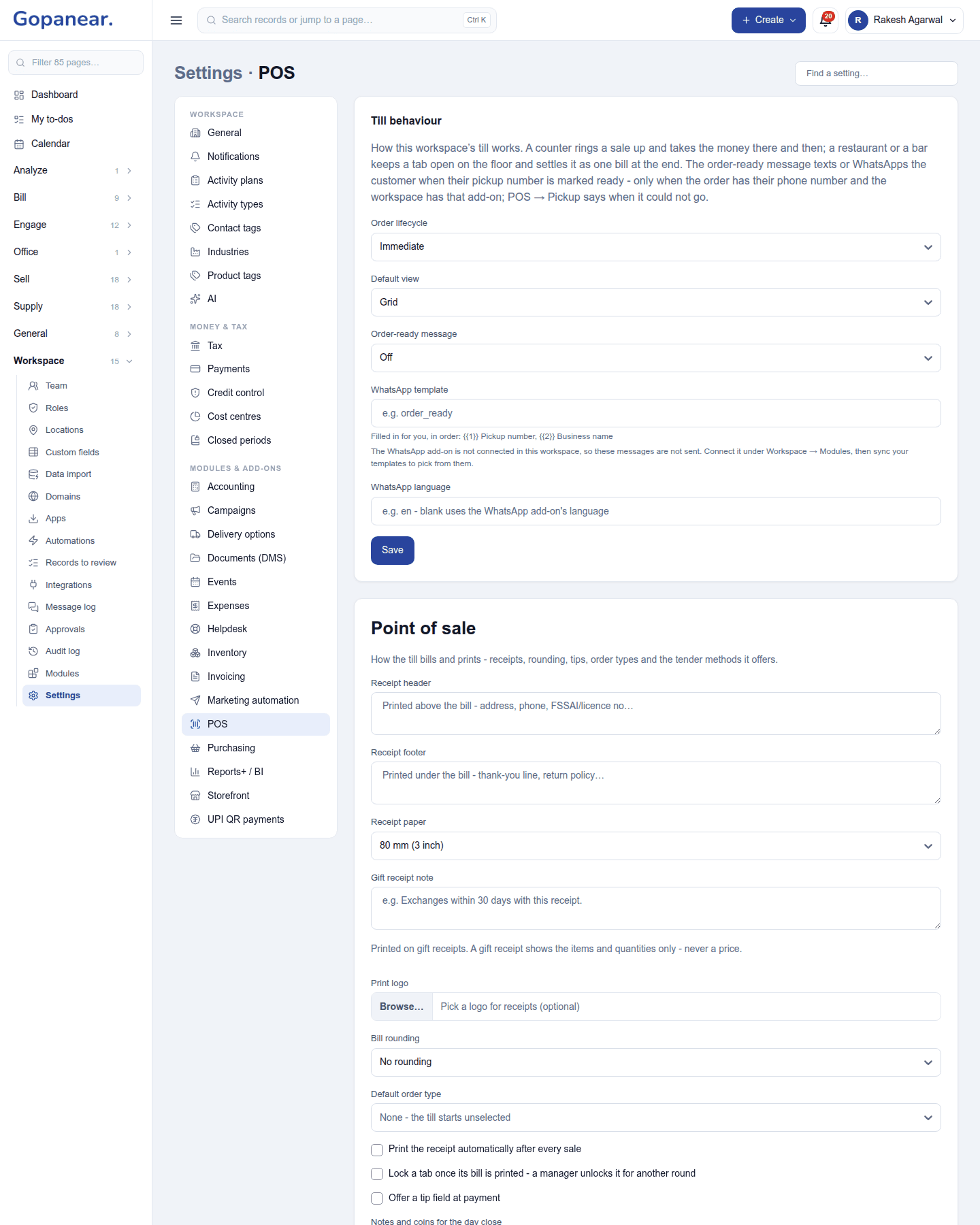
Settings → POS holds:
- Till behaviour: order lifecycle (Immediate: ring and take money; Open tabs: tabs on a floor), the default view (Grid or Floor), and the order-ready message (off, a text message, or WhatsApp, with its template and language).
- Point of sale: WhatsApp ordering (with a WhatsApp add-on: tick Answer WhatsApp messages with the ordering link, give your ordering page and, if you like, the words before it; a customer who starts a WhatsApp chat with you, or writes menu, order or hi, gets them at once, at most once in 6 hours, and the answer shows in the chat for the team), the review page link (usually your Google review link: with it, the e-bill asks the guest How was it? with one to five stars; four or five stars open your review page, three or fewer leave a private note that rings the owner's and settings managers' bell), receipt header and footer, the receipt paper (80 mm or 58 mm, for the receipts this till prints itself and the receipt PDFs), the print style (Print text size from 70% to 160% of the usual, Print font: Clear (Tahoma), Arial, Serif or Typewriter, and Print "Powered by Gopanear" under bills and kitchen tickets, on by default), the print logo, rounding (none, whole unit or the smallest coin), gift receipts, bill printing and locking a printed bill, and the order types and payment methods lists.
- Devices: pairing tills, customer displays and self-order kiosks; several registers, each with its own cash drawer and, optionally, its own ledger account.
- Tips presets, service charge per order type, the cash variance limit, and more.
Permissions
| Permission | Allows |
|---|---|
Use the till (pos.use) |
Ring up sales and take payment; the Sales and Customers lists. |
Manage till devices (pos.devices) |
Pair, rename and remove till devices. |
Void till sales (pos.void) |
Void a sale made at the till. |
Run cash drawers (pos.cash) |
Open and close cash drawers, record cash in and out (Day close). |
Give till discounts (pos.discount) |
Give a discount on a sale. |
Change till prices (pos.price) |
Change an item's price on a sale. |
Take till returns (pos.refund) |
Take returns and give refunds. |
Print table bills (pos.bill_print) |
Print a table's bill before it is paid, at the till or on the captain app. |
Take table payments (pos.settle) |
Take payment on a table's bill and close the table, at the till or on the captain app. |
Move tables (pos.table_move) |
Move a table's order, or some of its dishes, to another table. |
Settle bills for less (pos.settle_less) |
Take less than a table's bill comes to and write off the rest with a reason. Admin and Manager hold it; give it to another role on purpose. |
Close drawers over the limit (pos.cash_manager) |
Close a drawer whose count is off by more than allowed, see every cashier's takings, Till exceptions and UPI to confirm. |
Every role that could use the till on 22 November 2026 also holds the three table permissions, so nothing changed for it. To let waiters take orders but not print bills, take payment or move tables, make them a role with Use the till and View kitchen orders only (Settings → Roles). The till hides those buttons for them (without Take table payments, Split bill only moves items to a new tab, with no Split and pay now), and the captain app shows only the actions their role holds.
Ready-made automations
| Name | Kind | What it does | Starts |
|---|---|---|---|
| Tell me when a till closes over its cash limit | Rule | Tells the workspace owner when counted cash differs from expected by more than the limit. | On |
Turning it off
The till and its boards leave the menu. Sales, sessions and receipts are kept. Restaurant ops (KOT) needs POS, so it must be switched off first.
In the desktop and mobile apps
- Restaurant desktop app (POS): carries the till, the floor, the kitchen display, Day close, Products with its Import (online only) and the site hub, and works offline: sales and tab rounds queue on the device and replay in order when the internet returns, and the site's devices keep working together over the local network.
- Captain (waiter's phone): carries the floor, taking orders to the table and the bill, through the site hub or the cloud.
- Retail POS (a shop's counter computer): carries the till, Sales, Customers, Stock and Day close, all offline: with no internet, Sales and Customers show what the computer has (the last 30 days of sales, and its own sales not sent yet on top, Waiting to sync), said with the time of the last sync. Downloading an invoice and adding a customer need the internet.
- Retail Billing (a shop's phone): rings up a sale on the phone, with its receipt, this phone's sales and a price check, offline too.