








































Zomato orders
Takes Zomato orders straight into the kitchen. Every order lands on the Online orders screen with the rider, the delivery OTP and the customer's items, prints its kitchen tickets by itself, and is accepted or refused without leaving the counter.
| At a glance | |
|---|---|
| Type | Add-on module |
| Group | Sell |
| Price | Free |
| Provides | Receive orders from food-delivery platforms |
| Needs | Nothing to switch on. Orders become ordinary orders, and kitchen tickets need Restaurant ops (KOT). |
| Offered to | Restaurant |
| Permission | Manage add-ons (addons.manage) to connect; View orders to see Online orders |
What it does
Zomato orders gives the workspace the Receive orders from food-delivery platforms capability, shared with Swiggy orders. Either one opens Online orders under General in the menu (and on the POS top bar).
Each order arrives as an ordinary order on the online channel, so everything downstream works on its own: kitchen tickets print, stock moves, and the sale counts in every report. With it come the platform's order id, the short number the rider quotes, the rider's name and phone, the delivery OTP, and the platform's own money breakdown (items, discount, taxes, delivery, packing, total, and commission and payout when sent).
Prices are yours. Items are matched to your menu by SKU, then short code, then exact name, and priced from your menu. A dish your menu has never heard of still reaches the kitchen under Zomato's name and price, held against a hidden placeholder until you give the real dish that SKU. The platform's own totals are kept beside yours, never mixed in.
A repeated push changes nothing: one Zomato order can only ever become one order here.
Connecting Zomato
- Go to Workspace → Modules, filter to Add-on modules. Zomato orders is under Sell, with Zomato's logo.
- Open its ⋮ menu and choose Enable.
- Choose an Order push token. Give Zomato the Order push URL shown at the top of the dialog, and ask them to send the token as the
x-api-keyheader. - Press Enable.
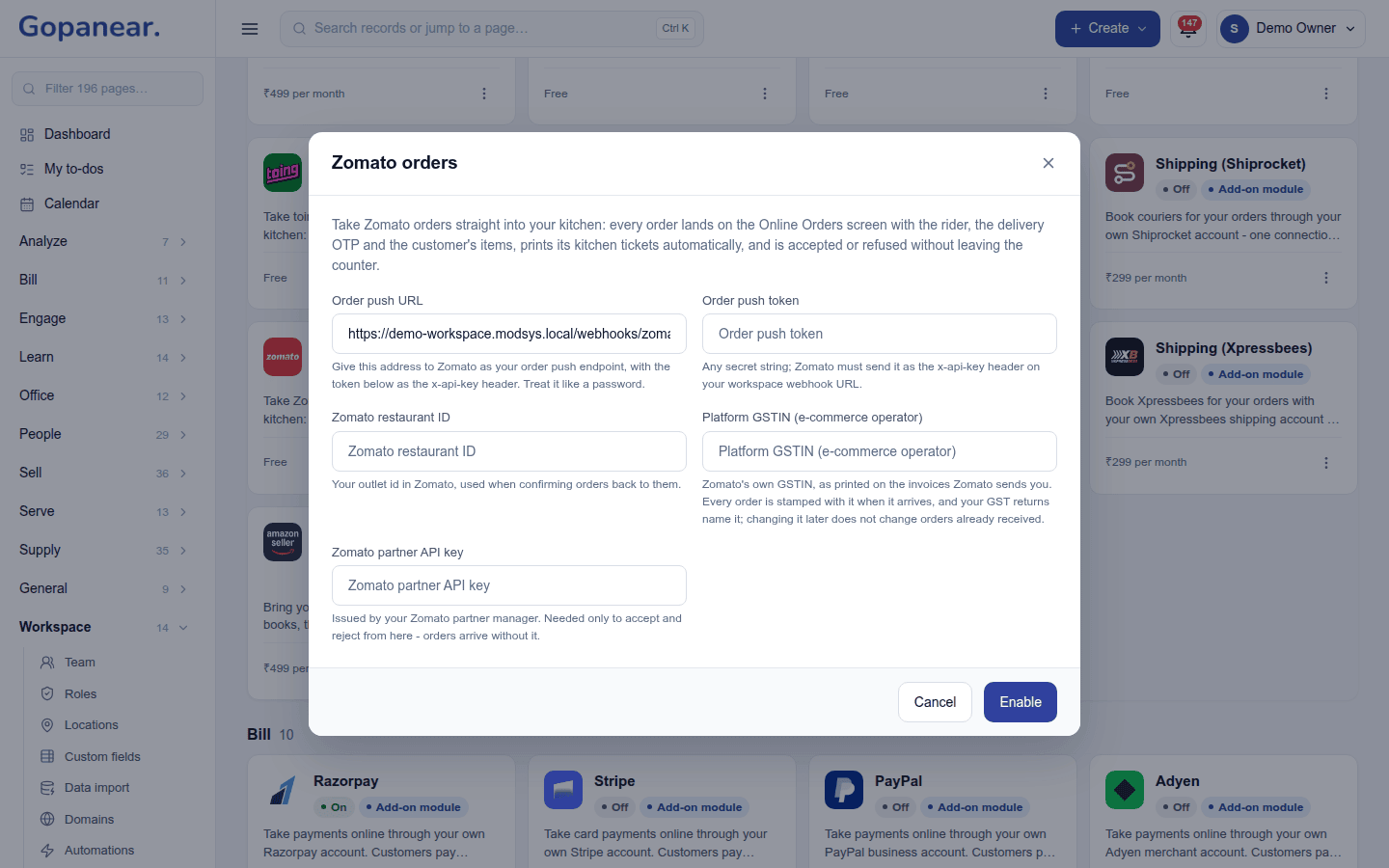
| Field | Required | What to enter |
|---|---|---|
| Order push URL | (shown) | Read-only. Zomato's order push endpoint. Treat it like a password. |
| Order push token | Yes | Any secret string, sent by Zomato as the x-api-key header. A push without it is refused. |
| Zomato restaurant ID | No | Your outlet id at Zomato, used when confirming orders back to them. |
| Platform GSTIN (e-commerce operator) | No | Zomato's own GSTIN, as printed on the invoices Zomato sends you. Checked as a GSTIN when you save. |
| Zomato partner API key | No | From your Zomato partner manager. Needed only to send your accept and refuse decisions back to Zomato. Write-only once saved. |
The platform GSTIN is stamped on every order as it arrives, and the GST returns name your food-delivery invoices by it. Changing it later applies only to orders that arrive afterwards, so a month already filed is never restated.
Zomato's own webhooks. Zomato sends each kind of news to its own webhook: new orders, status updates, the rider's progress, its question about where an order stands, a customer's cancel request, your outlet going offline, and its answers to a menu you sent. Each one is the Order push URL with ?event= added (order, status, rider, fetch_status, cancel_request, outlet_status, menu_processing, menu_moderation), and each is answered the way Zomato expects. When your outlet is connected through the platform itself, Zomato reaches you by your Zomato restaurant ID, so make sure it is right.
Working the orders
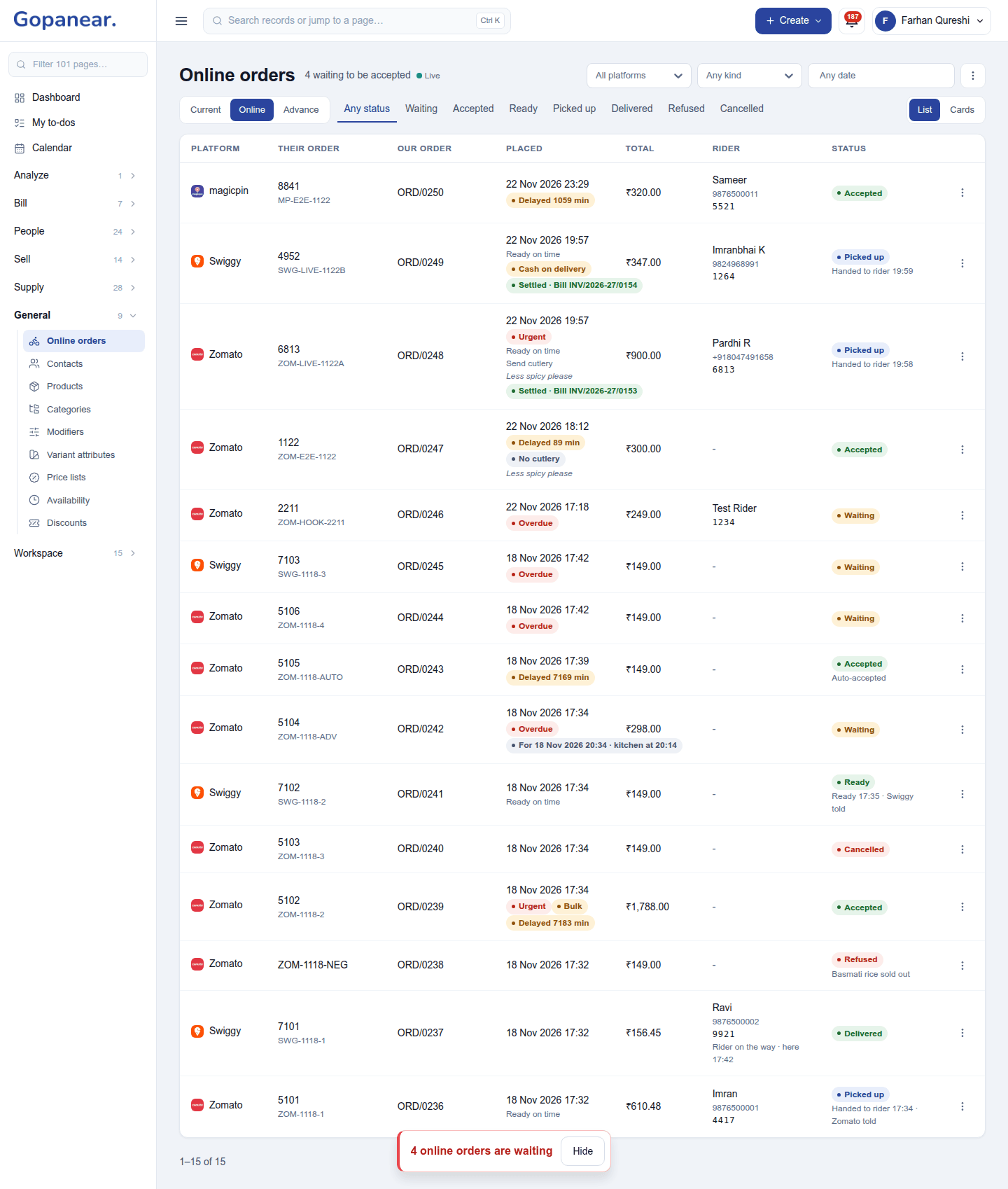
- A new order rings. On every screen, a panel names each order waiting for Accept or Refuse and rings every few seconds until someone acts on it. Settings → Online orders → Ring for new orders turns the sound off.
- Accept confirms the order and promises a preparation time. It opens on Zomato's own suggested time for the order when Zomato sends one (Zomato suggests 20 min), else your default. Zomato is told in the background, so the counter never waits.
- The order shows everything the customer said: the add-ons on each dish, the variant, a note on a dish, the cooking instructions for the order and No cutlery. The kitchen slip prints them too.
- Refuse asks for one of Zomato's reasons (Items out of stock, Kitchen is full, Outlet closed and the rest), with an optional note. Items out of stock asks which dishes ran out, tells Zomato, and switches them off here until tomorrow. Once accepted, only Zomato's after-acceptance reasons are offered. Its kitchen tickets are voided and the reason is kept. An order already picked up or delivered cannot be refused.
- Food ready, then Handed to rider, tell Zomato once each. When Zomato asks for its missing-item checklist, Food ready first lists the dishes to tick as they go into the bag. Otherwise, when the kitchen display marks every ticket of the order Ready, the order is marked ready by itself.
- The customer asks to cancel: the order rings again and says so. Answer the cancel request offers Agree to cancel or Keep the order, and Zomato is told.
- Call customer or rider shows Zomato's masked numbers for the order, asked for when you open it and never kept. Ask for another rider is on a Bulk order once accepted.
- Being returned to you marks an order cancelled after pickup that the rider is bringing back; Received back says the counter has it.
- Stores in the header opens or closes the outlet on Zomato: for 15 or 30 minutes, an hour or two, the rest of the day, or until someone reopens it, with one of Zomato's own reasons. When Zomato takes your outlet offline itself, the Stores dialog says so with its reason. Help from Zomato opens Zomato's support chat.
- The tabs show Current, Online and Advance orders, as a list or as cards, filtered by status and platform, with Export CSV.
- Out of stock on an order lists its dishes: tick the ones that ran out and they are switched off everywhere until tomorrow, and Zomato is told, without refusing the order.
- Settle issues the order's bill and records it as paid by Zomato, so it counts in the day close (as ZOMATO under Collections by method) and in the GST returns. By default this happens by itself the moment the order is handed to the rider; a cash-on-delivery order settled by hand can say your own rider took the cash. An order that could not be settled by itself says why and keeps its Settle button.
- Every change (accepted, rider assigned or on the way, picked up, delivered, cancelled, settled) shows at once on Online orders and on the POS Live view.
The bill
On the POS Live view, a Zomato card's ⋮ menu has Print bill. The bill says PAID when Zomato took the payment, then From Zomato [the Zomato order number] and the customer's name, Delivery, the items and taxes, Paid via Online [Zomato], Tax to be paid under section 9(5) by the e-commerce operator, the Delivery Passcode. It prints on the site printer for bills, or on this computer's printer.
On the POS live view
POS → Live view shows each Zomato order as a card the way the pass works it: Zomato's colour and logo, its order number, Paid or Cash on delivery, the OTP, a running clock, the rider and where they are, the customer's name with Call customer and their area, the flags (urgent, bulk, cutlery, an advance order), the dishes, and Prepare in 08:12 counting down to the promised time (red, with Too late!, once it has passed). The next step is one button: Accept, Food is ready, Dispatched (it waits while the rider is still on the way) or Settle, beside OOS and Info. A chip above the cards shows Zomato's count and whether the store is taking orders, and narrows the board to Zomato.
Your menu on Zomato
Online orders → Menu sends your whole menu to Zomato: dishes, sizes, add-on groups, categories and their hours, prices, taxes and packaging charges. Before anything is sent it lists what Zomato would refuse, in Zomato's own rules (a dish with no veg, egg or non-veg tag, over Rs 4,000, a packaging charge over Rs 150, a dish made here not taxed at 5% GST, and in Maharashtra a paneer or cheese dish without its natural-or-analogue declaration), and Send menu to Zomato waits until each is fixed. Zomato's answer, and any dish its review holds back or refuses, show underneath.
The Dishes tab sets each dish's food facts (veg, egg or non-veg, GST type, meat types, serves, nutrition, allergens, the cheese and paneer declaration, the packaging charge) and whether it is on the delivery menu at all, for an item you sell only in the restaurant; the Add-ons tab sets each add-on's tag and picture. Switching a dish, one size of a dish or an add-on off on Item on/off tells Zomato at once.
Settings → Online orders holds Accept orders automatically (off by default; every change is logged), Ring for new orders, Settle online orders (when it is handed to the rider, when Zomato says it was delivered, or only by hand), the default preparation time, a decision deadline that flags waiting orders Overdue, and the outlet's ordering hours, which are also sent to Zomato as your delivery timings.
Without the partner API key and restaurant ID, everything works here; the decisions are simply not sent back to Zomato.
Turning it off
Turn off on the ⋮ menu asks first. Pushes are refused from that moment, and the settings are kept for when it goes back on. Online orders stays while another delivery platform is still connected.
Ready-made automations
None. Orders go straight to the kitchen display and Online orders; the automation engine has no food-delivery event to react to yet.
In the desktop and mobile apps
The restaurant desktop app carries Online orders as an online-only screen: with no internet it shows one notice instead of the page, because the orders come from the platform. The ringing order panel shows there too, and the site hub prints the order's instructions on its kitchen slips. Its Live view shows the Zomato cards above while online; with no internet it shows the tables only and says Zomato orders show when the internet is back. Online orders → Menu is a web screen only. The Captain phone app does not carry Online orders.