








































Sales orders
The screens for the workspace's sales orders: every order from the till, the online shop, an accepted quotation or a delivery platform, with its progress from ordered to delivered and invoiced, its shipments and returns.
| At a glance | |
|---|---|
| Type | Business module |
| Group | Sell |
| Needs | Nothing |
| Included in | Packs that take orders ahead of delivery (Manufacturing, E-commerce, Wholesale, Clinics, Repairs & field service …) |
| Offered to | Every industry pack |
| Permissions | Core: View orders (orders.view), Create orders (orders.create), Change orders (orders.update), Record deliveries (orders.deliver) |
What the module is, and is not
Orders themselves are Core: the till, the online shop and accepted quotations all write orders whether or not this module is on (most packs sell without it). Sales orders switches on the Sales orders screen and the order page over them. Its permissions are the Core order permissions.
Orders are never typed in blank: they arrive from an accepted quotation, the online shop, the till, a delivery platform, an import or the API. The empty list says so: Orders appear here as they are placed.
Switching it on
Workspace → Modules → Sales orders → Enable (needs Manage modules). Sales orders appears under Sell.
The list
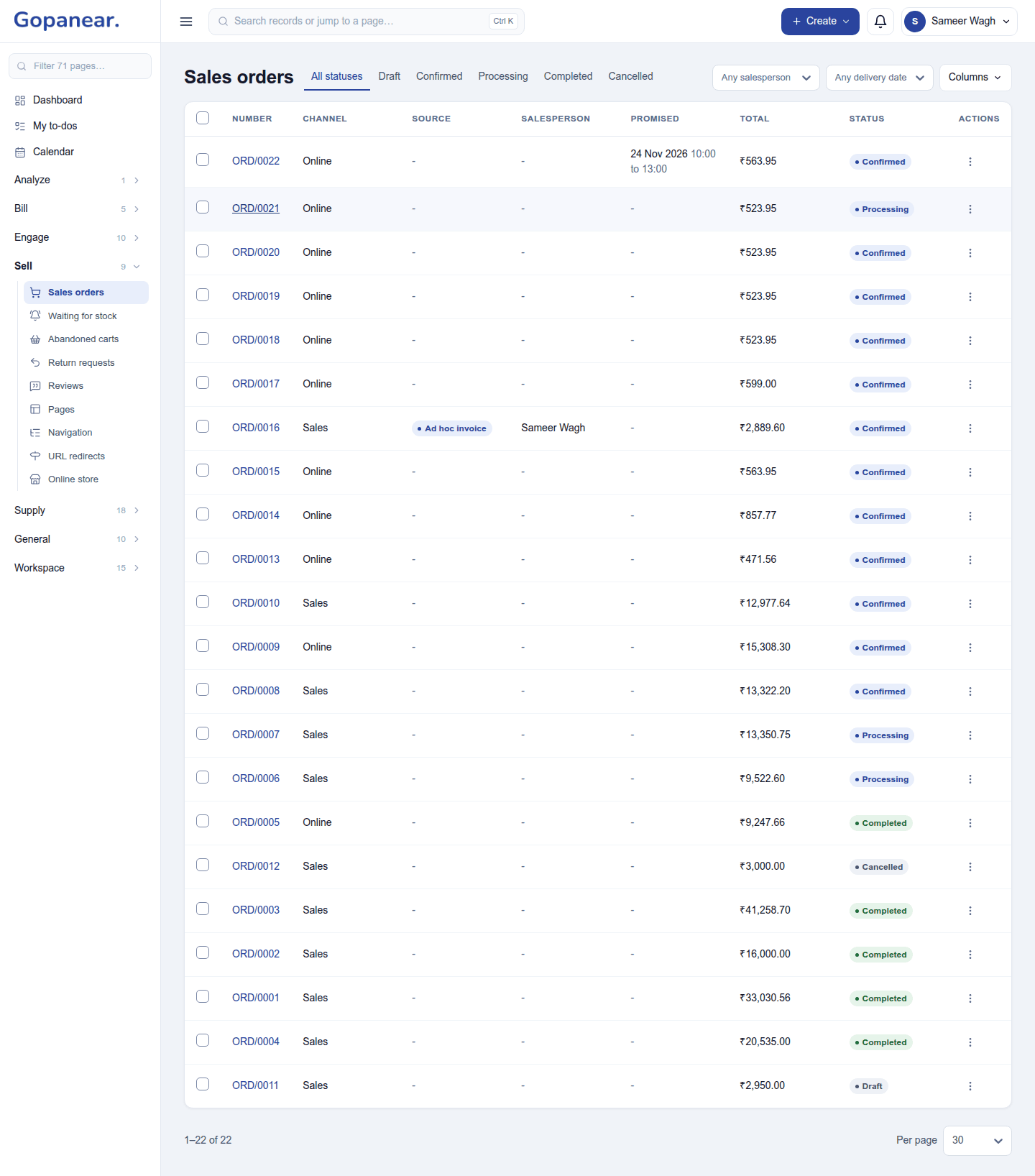
Sell → Sales orders lists every order with its number, channel (Sales, Online, POS …), source (the quotation or document it came from), salesperson, promised date, total and status. The status dropdown in the header filters by Draft / Confirmed / Processing / Completed / Cancelled (All statuses when cleared); the header filters by salesperson and delivery date and chooses the Columns. Late orders are marked Late.
Tick rows to send one WhatsApp template to each of up to 100 orders (with WhatsApp). A row's ⋮ menu: View, Approvals (an order waiting for approval), Create invoice, Cancel order and WhatsApp. Cancelling an order cancels the service jobs raised from it that have not started, and says which it kept.
Picking and packing
Print pick list. Tick the orders you are about to pack in the list and choose Print pick list. You get one list for all of them: each product once, with its code and barcode, the total to pick, and which orders it is for, with a box to tick at the shelf. Only goods are listed, never services or delivery charges, and no prices. Orders must be confirmed or being processed; a draft, cancelled or completed order is named and nothing prints.
Packing check. Open an order and press Packing check. Scan each item's barcode (or type its code and press Enter), once per piece. Each line counts up to what the order holds. A code that is not on the order, or one scan too many, is said at once and counts nothing. An item sold by weight or length, or with no code, is ticked by hand. When every line is complete, Mark as packed records who packed it and when, and the button then reads Packed.
An order
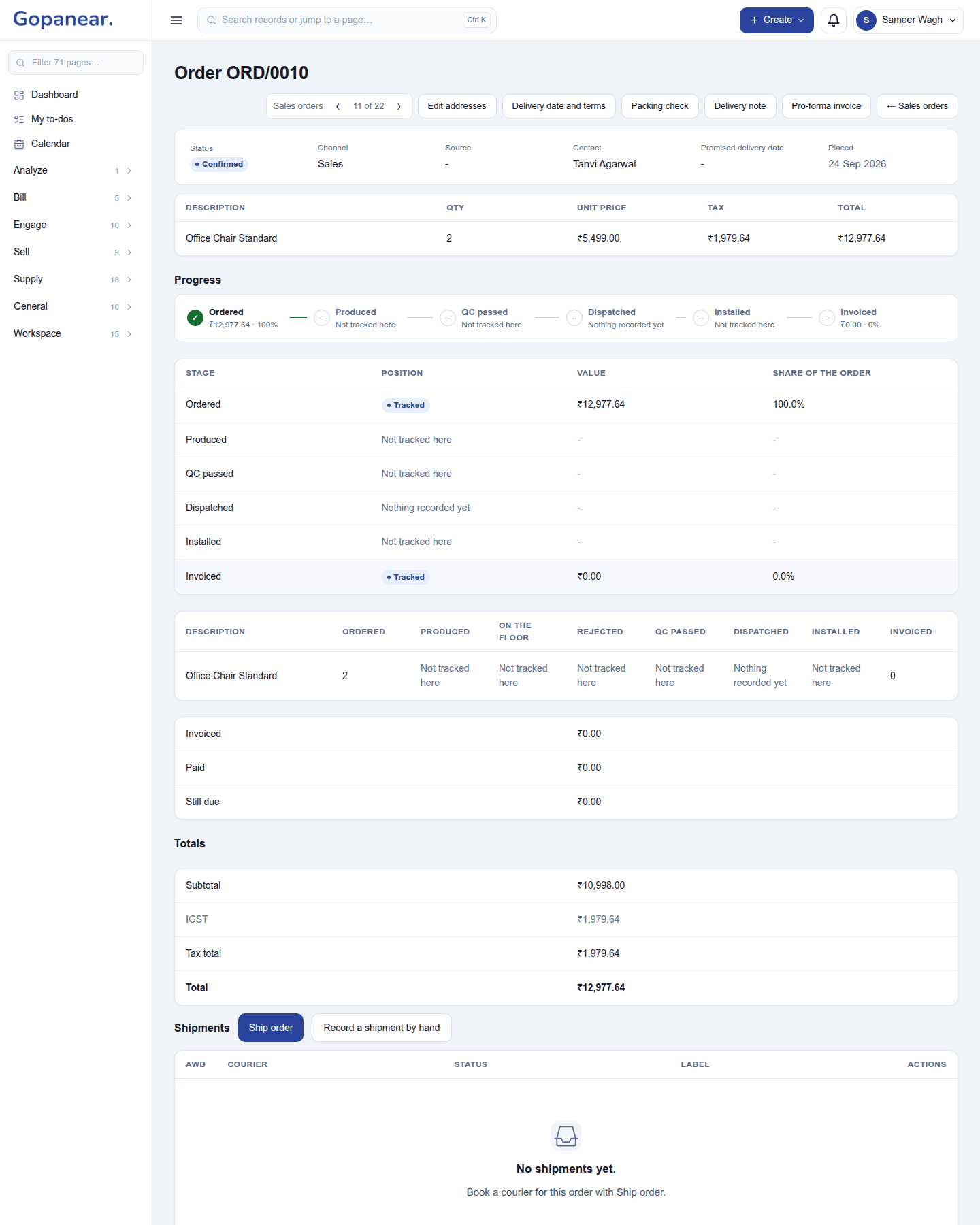
The header carries Edit addresses, Delivery date and terms (the promised date and delivery terms), Delivery note and Pro-forma invoice, and steps to the next and previous order. Below:
- Status, channel, source, contact, where it is delivered and billed, the promised date and when it was placed, then its lines with quantity, price, tax and total.
- Delivery window, when the shopper chose a delivery slot at the online checkout. Its day is the promised date, and the list's Promised column shows the window too.
- Progress: Ordered → Produced → QC passed → Dispatched → Installed → Invoiced, as a strip and line by line. A stage the workspace does not track says Not tracked here.
- Invoiced, paid and still due, then the Totals.
- Shipments: Ship order books a courier (with a courier add-on module such as Shiprocket); Record a shipment by hand for a courier booked elsewhere; delivery on the workspace's own vehicle with Fleet. Each shipment's e-way bill number can be recorded.
- Copy tracking link (a shipment's ⋮ menu): the address of the order's tracking page, to paste into a message. See The customer's tracking page below.
- Returns: return shipments and the credit notes they raise.
- With Invoicing's progress bills on: down payments, progress bills and retention on large orders.
- Service jobs raised from the order (with Work orders).
An order moves once. Two people moving the same order at the same moment cannot both apply; the second is told it has already moved.
The customer's tracking page
Every order has a page its customer can open without signing in, on your own address. It shows how far the order has come and nothing else: the four steps (Order placed → Packed → On its way → Delivered), the expected delivery date when there is one, and for each parcel the carrier, the tracking number, the carrier's latest words and a button to the carrier's own tracking page.
The page never shows a price, an address, a name, a phone number or what was bought, so the link is safe to forward to whoever is waiting for the parcel.
A customer reaches it three ways:
- The link in a message. The ready-made parcel emails below carry it, and any automation on Shipment status changed can use the Tracking page link field.
- Copy tracking link, from a shipment's ⋮ menu on the order, pasted wherever you like.
- Track your order, at
/trackon your address: the customer types the order number and the e-mail or phone they ordered with.
With the Storefront, a shopper's own order page links to it too, once a parcel exists.
Approval
Where an approval rule covers sales orders (Workspace → Approvals), a new order waits as a Draft with a pending request until it is approved. It cannot be invoiced, shipped or delivered while it waits.
Permissions
| Permission | Allows |
|---|---|
View orders (orders.view) |
See orders, their deliveries and Online orders. |
Create orders (orders.create) |
Take new orders (at the till or from a quotation). |
Change orders (orders.update) |
Change, dispatch and cancel orders; ship and invoice them. |
Record deliveries (orders.deliver) |
Record who received an order's goods on its delivery note. |
Ready-made automations
| Name | Kind | What it does | Starts |
|---|---|---|---|
| Remind the salesperson of orders promised for tomorrow | Rule | The day before an order's promised date, tells its salesperson while it is still open. | On |
| Email an update on the order | Action (on an order) | Tells the customer their order is being worked on. | On |
| Email the customer when their parcel is on its way | Rule | When a parcel leaves with the courier or on your own vehicle, emails the customer a link to follow it. | On |
| Email the customer when their parcel is delivered | Rule | When a parcel is marked delivered, emails the customer. Many couriers send their own. | Off |
| Email the customer when a delivery fails | Rule | When the courier could not deliver a parcel, emails the customer a link to see where it stands. | Off |
Turning it off
The Sales orders screen leaves the menu. Orders keep being written by the till, the shop and quotations, and stay on record.
In the desktop and mobile apps
The restaurant desktop app and the Captain app take orders at the till and the table, offline included; those are sales orders on the server once they sync.
An Online store workspace has two apps that carry the Sales orders screen (see the online store apps):
- Store Orders on the office or packing-room computer: the Orders screen is this list. With no internet it shows the orders the computer last synced (every open one, and those placed in the last two weeks), and moving an order on, cancelling it and Record a parcel (the courier and its tracking number, to the order's own delivery address) still work: each shows at once, marked Waiting to sync, and is sent when the internet is back. View opens the order's lines, address and parcels. Invoices, bulk actions and an order's own page need the internet.
- Store Packing on a phone: the orders to pack, each with its lines as a pick list, Start packing, Record a parcel and Delivered, with no signal too.
A change the server refuses (someone moved the order on meanwhile, or the workflow does not allow the move) shows with the server's reason, and can be dismissed.