








































Tally export
Exports the workspace's sales invoices, payment receipts, refunds and TDS entries as Tally XML vouchers, so they can be imported into Tally Prime and the books stay in step without retyping.
| At a glance | |
|---|---|
| Type | Add-on module |
| Group | Bill |
| Price | ₹299 per month (list price) |
| Provides | Export vouchers for accounting software |
| Needs | Invoicing, where the invoices and payments are |
| Offered to | Every industry pack |
| Permission | Manage add-ons (addons.manage) to switch on; View invoices to download |
What it does
Tally export is a pure unlock: no keys, no outside service. Switching it on adds Tally vouchers (date range) to the Exports dialog on the Invoices screen. One download is one Tally Prime import file for the dates picked.
| Voucher | One per | Entries | Voucher number |
|---|---|---|---|
| Sales | issued invoice | The customer debited with the total; Sales credited with the taxable value, and each GST head (CGST, SGST, IGST, UTGST) with its tax |
The invoice number |
| Receipt | payment received against an invoice | Cash debited; the customer credited |
<invoice>-R<id> |
| Payment | refund | The customer debited; Cash credited |
<invoice>-RF<id> |
| Journal | TDS a customer deducted, dated the day it was deducted | TDS Receivable debited; the customer credited |
<invoice>-TDS<id> |
| Journal | that TDS removed later, dated the day it was removed | The customer debited; TDS Receivable credited |
<invoice>-TDS<id>-R |
Amounts follow Tally's convention: a debit is negative. The customer's ledger is named exactly as the contact is named.
Switching it on
- Go to Workspace → Modules, filter to Add-on modules. Tally export is under Bill.
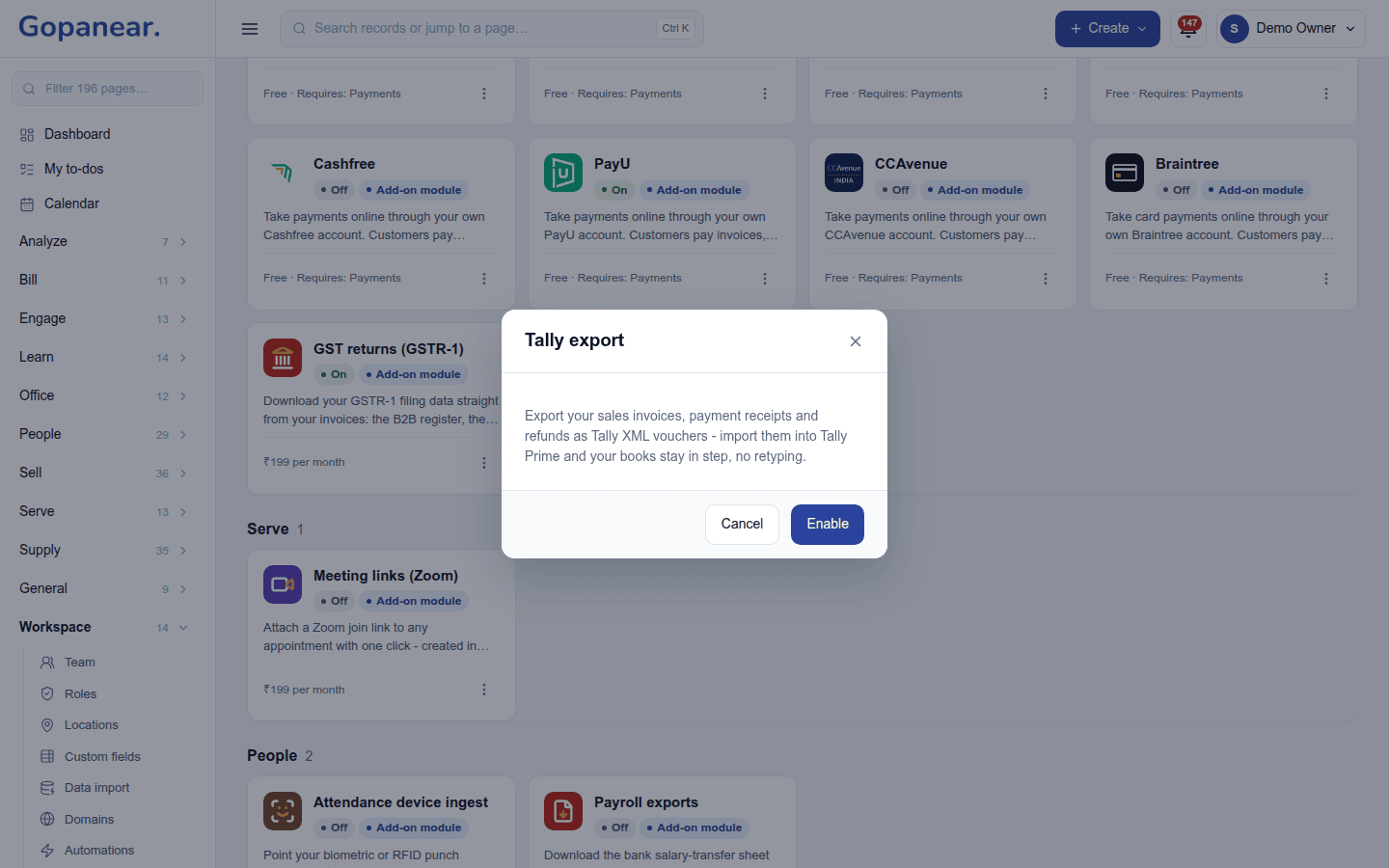
- Open its ⋮ menu and choose Enable. The dialog only describes what it does; press Enable.
In Tally, once: create the ledgers Sales, CGST, SGST, IGST and Cash (and TDS Receivable if customers deduct TDS) before the first import.
Downloading vouchers
- Open Bill → Invoicing, open the three-dot menu beside New invoice and choose Exports.
- Under Tally vouchers (date range), pick the Date range.
- Press Download XML, then import the file in Tally Prime.
The Exports dialog looks like the one shown in GST returns, with the Tally section below the GST one when both add-on modules are on.
Which dates: the range is calendar dates on the workspace's clock (the time zone under Settings → Business day, else the country's), the same rule as the GST returns. A receipt or refund is dated the day the money moved, the date entered with it, not the day it was keyed.
Not in the file (enter these in Tally by hand):
- an advance: a deposit with no invoice behind it (a wallet top-up is one);
- a credit note: there is no Credit Note voucher;
- opening balances carried in at go-live.
Before importing a range twice, check the voucher numbers, or Tally can end up holding the same voucher twice.
Tally ledger names
Tally refuses a voucher that names a ledger it does not have, so match the names once: in the Exports popup press Tally ledger names (changes need Manage settings). Each box shows the name the file uses today; type the name your accountant's Tally uses, or leave it empty to keep it.
- Sales side: sales, CGST, SGST, IGST, UTGST, the walk-in customer (Cash Sales), TDS receivable and foreign exchange gain or loss.
- Each way to pay: cash, card, UPI, bank transfer, cheque, wallet and other can each go to their own ledger (for example HDFC UPI). A way left empty goes to the cash ledger, as before.
- Till sales as one voucher a day: the till's walk-in sales go to Tally as one Sales voucher a day (TILL-20261123) and one Receipt voucher a day for each way they were paid (TILL-20261123-CASH), as accountants want from a shop or restaurant. A bill to a customer with a GST number, a bill in another currency and every refund stay one voucher each.
- Supplier bills, supplier payments and expenses: with this ticked, the file also carries a Purchase voucher for each supplier bill booked in the range (purchases and input tax debited, the supplier credited less any TDS held, the TDS to TDS Payable), a Payment voucher for each payment to a supplier, and a Payment voucher for each expense (the expense ledger, with claimable input tax apart). Their ledgers appear in the popup once it is ticked.
With nothing set and both boxes clear, the file is exactly what it was before.
Sending each day to Tally by itself
Tally runs on a computer in the shop or the accountant's office and only listens on that computer, so nothing on the internet can post to it. Our desktop app on that computer does it instead:
- Install the desktop app on the Tally computer and sign in to the workspace. It appears in the computers list.
- In Tally ledger names, tick Send each day to Tally by itself, choose that computer as the Tally computer, pick the First day to send, and keep the Tally port at 9000 unless your Tally uses another. Name the Tally company if Tally may have another company open.
- In Tally, switch on its port for other programs (Tally's Connectivity settings: TallyPrime acts as a server on port 9000) and keep the company open.
Every few minutes the app posts the next finished day (up to yesterday), oldest first, and the popup lists the last days sent with what Tally said (created, altered, errors). A day Tally refused, for example because a ledger is missing, is tried again after 30 minutes, with Tally's words shown so the ledger can be created or renamed. A day sent twice never doubles in Tally: every voucher carries a fixed id, so Tally alters it instead.
Bringing your data in from Tally
Moving from Tally? The same desktop app on the Tally computer reads Tally for you, so there is no file to export or retype.
- Set up Sending each day to Tally by itself above far enough to choose the Tally computer (and the Tally company, if Tally may have another open). The days need not be switched on.
- Go to Data import and choose From Tally (in the header's ⋮ menu). Pick the day your books here start and press Read from Tally.
- Keep Tally open with the company loaded. Within a few minutes the app reads it, and the dialog says what Tally sent: how many customers, suppliers and products, and how many customer and supplier opening balances.
- Press Bring them in. Five imports run one after the other, listed on Data import with their rows and any errors: customers, suppliers, products, then the opening balances.
| From Tally | Arrives as |
|---|---|
| Ledgers under Sundry Debtors (at any depth) | Customers, with their GSTIN, state, phone, email and GST registration type |
| Ledgers under Sundry Creditors | Contacts marked as suppliers |
| A debtor's debit opening balance | An opening invoice for that amount, dated the day your books start |
| A creditor's credit opening balance | An opening supplier bill, dated that day |
| Stock items | Products with their HSN, the GST rate's tax group (when you have one at that rate), the standard selling price, and the unit when you have one by that name |
Each party gets a code from its Tally name, so reading Tally again later and bringing it in updates the same contacts instead of adding them twice. Past vouchers stay in Tally: bringing a year's invoices in would post them into the books and the GST returns a second time, so the books here start from the opening balances. Opening stock is not read either (it needs your locations and batches); enter it with an Opening stock file.
Turning it off
Turn off on the ⋮ menu asks first. The Tally section leaves the Exports dialog. Nothing is lost: files are built on demand.
Ready-made automations
None. An export is made on demand.
In the desktop and mobile apps
Not carried as a screen. The desktop app on the Tally computer posts each day to Tally and reads Tally for From Tally.