








































Swiggy orders
Takes Swiggy orders straight into the kitchen. Every order lands on the Online orders screen with the rider, the delivery OTP and the customer's items, prints its kitchen tickets by itself, and is accepted or refused without leaving the counter.
| At a glance | |
|---|---|
| Type | Add-on module |
| Group | Sell |
| Price | Free |
| Provides | Receive orders from food-delivery platforms |
| Needs | Nothing to switch on. Orders become ordinary orders, and kitchen tickets need Restaurant ops (KOT). |
| Offered to | Restaurant |
| Permission | Manage add-ons (addons.manage) to connect; View orders to see Online orders |
What it does
Swiggy orders works exactly as Zomato orders: both provide Receive orders from food-delivery platforms, and either one opens Online orders under General in the menu and on the POS top bar. A restaurant on both sees both platforms' orders on one screen, with a platform filter.
Each order arrives as an ordinary order on the online channel (kitchen tickets print, stock moves, reports count it), with Swiggy's order id, the rider's name and phone, the delivery OTP and Swiggy's money breakdown. Items are priced from your menu, matched by SKU, then short code, then name; an unknown dish still reaches the kitchen under Swiggy's name. A repeated push never makes a second order.
Connecting Swiggy
- Go to Workspace → Modules, filter to Add-on modules. Swiggy orders is under Sell, with Swiggy's logo.
- Open its ⋮ menu and choose Enable.
- Choose an Order push token. Give Swiggy the Order push URL shown at the top of the dialog, with the token as the
x-api-keyheader. - Press Enable.
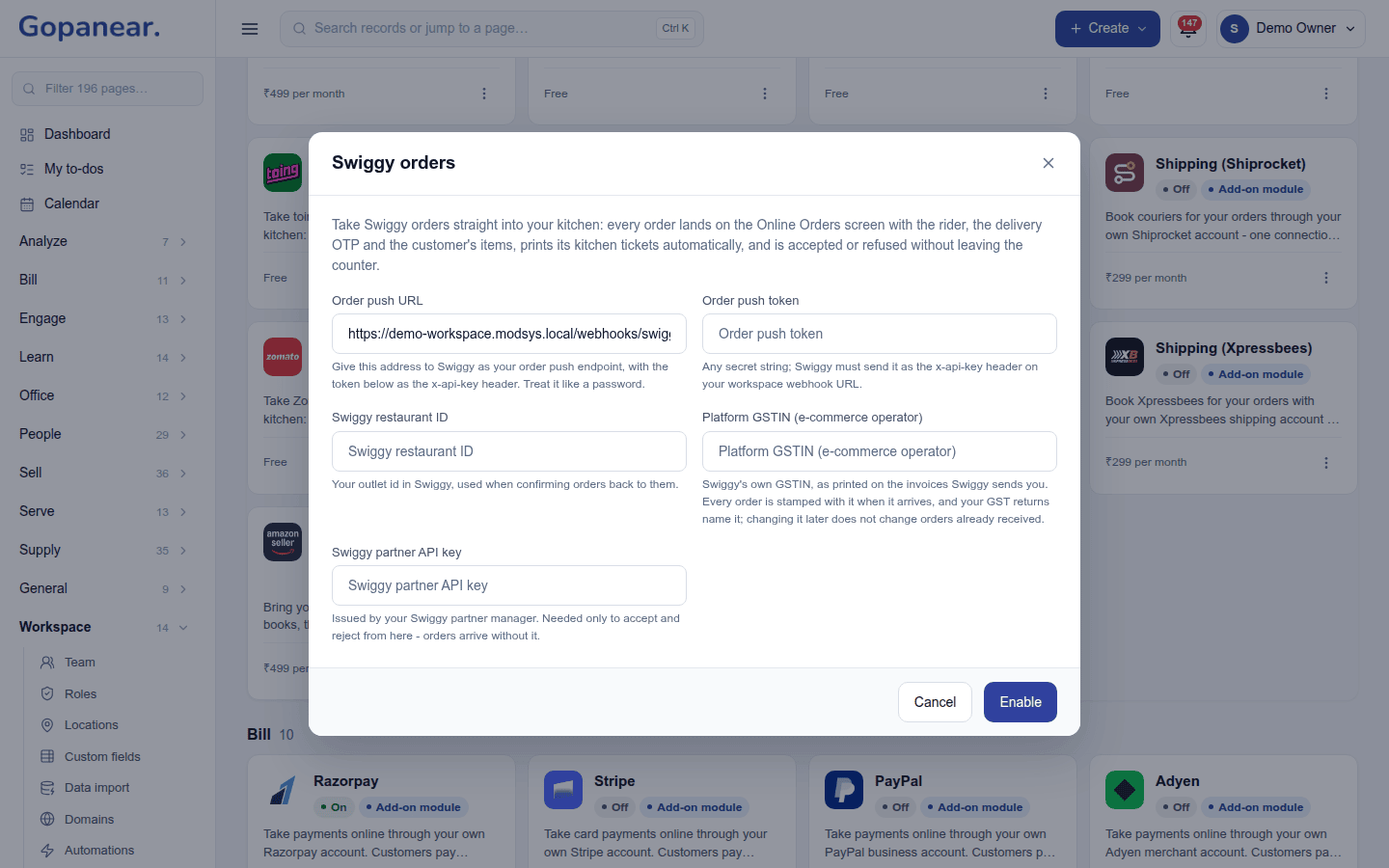
| Field | Required | What to enter |
|---|---|---|
| Order push URL | (shown) | Read-only. Swiggy's order push endpoint. Treat it like a password. |
| Order push token | Yes | Any secret string, sent by Swiggy as the x-api-key header. |
| Swiggy restaurant ID | No | Your outlet id at Swiggy, used when confirming orders back to them. |
| Platform GSTIN (e-commerce operator) | No | Swiggy's own GSTIN, as printed on its invoices to you. Stamped on each order as it arrives and named by the GST returns. A Swiggy order never takes Zomato's number. |
| Swiggy partner API key | No | From your Swiggy partner manager. Needed to send your decisions back to Swiggy and to ask it for the masked numbers or the help chat. Write-only once saved. |
Working the orders
The same as for Zomato: a new order rings on every screen; Accept (with a preparation time, Swiggy's own suggestion when it sends one) or Refuse with a reason (and, for Items out of stock, the dishes that ran out); then Food ready and Handed to rider, all told to Swiggy in the background. The add-ons, variant, notes, cooking instructions and cutlery choice show on the order and print on the kitchen slip. Stores opens or closes the outlet on Swiggy with a reason. Out of stock switches the dishes that ran out off until tomorrow without refusing the order. Settle issues the order's bill and records it as paid by Swiggy (by default the moment it is handed to the rider), so it counts in the day close as SWIGGY and in the GST returns. On the POS Live view each Swiggy order is a card in Swiggy's colour and logo with the OTP, the rider, the customer's area, a Prepare in countdown and its next step as one button, and a Swiggy chip shows the count and whether the store is taking orders. Settings → Online orders holds auto-accept, Ring for new orders, Settle online orders, the default preparation time, the decision deadline and the ordering hours. See Zomato orders → Working the orders for each step, with a screenshot.
Since 2026-11-23 Swiggy also has everything Zomato's connection does:
- Answer the cancel request when the customer asks Swiggy to cancel (Agree to cancel or Keep the order), and Swiggy is told.
- Call customer or rider shows Swiggy's masked numbers for the order, asked for when you open it and never kept; Ask for another rider on a bulk order once accepted.
- Food ready asks for the missing-item checklist when Swiggy asks for it on the order.
- Help from Swiggy in the Stores dialog opens Swiggy's support chat (only ever a page on Swiggy's own sites).
- Online orders → Menu sends your whole menu to Swiggy after the same checks as for Zomato, and the ordering hours in Settings → Online orders go to Swiggy as your delivery timings.
Swiggy publishes no partner reference, so these calls follow one provisional shape until Swiggy onboards us; without the partner API key they are not sent, and a question (the masked numbers, the help chat) says so.
The bill
On the POS Live view, a Swiggy card's ⋮ menu has Print bill. The bill says PAID when Swiggy took the payment, then From Swiggy [the Swiggy order number] and the customer's name, Delivery, the items and taxes, Paid via Online [Swiggy], Tax to be paid under section 9(5) by the e-commerce operator, the Delivery Passcode and Swiggy's pickup barcode for its rider (Scan to mark food ready). It prints on the site printer for bills, or on this computer's printer.
Turning it off
Turn off on the ⋮ menu asks first. Swiggy's pushes are refused from that moment; the settings are kept.
Ready-made automations
None. Its orders go straight to the kitchen display and Online orders.
In the desktop and mobile apps
The restaurant desktop app shows Online orders as an online-only screen (one notice when offline), and the Swiggy cards on its Live view while online. The Captain phone app does not carry them.
Related guides
- Online orders, Zomato orders, Restaurant ops (KOT)
- Module guides index